
By default, every Takeoff Item's No., Name, and active Results are shown on the Worksheet Tab. (See Related Articles for details on specifying which Results you want to see on the Worksheet Tab for each Takeoff Item in this bid.
Click the  control in the upper-left corner of the Grid to see all the available columns you can show.
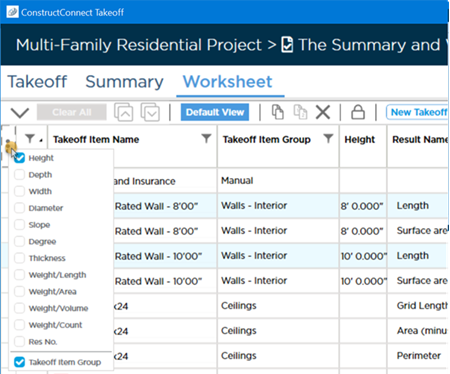
We select "Takeoff Item Group" the column is added immediately. To remove an option column just click on it to remove its check mark.
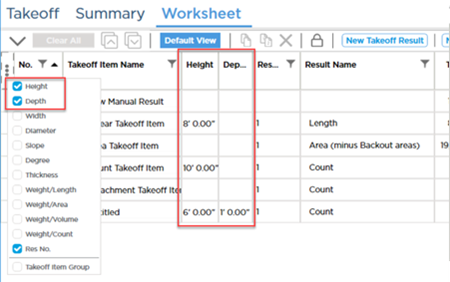
Columns are added to the left of the grid separator (dividing the Takeoff Item information from the pricing information).
Click the  button to reset the grid and remove any columns you previously added.
 Worksheet Tab: Toolbar, Shortcuts, and Context Menu Worksheet Tab: Toolbar, Shortcuts, and Context Menu | Worksheet Tab: Pricing Syncs with the Takeoff Item Pricing  |
Related Articles
- Creating a Linear Takeoff Item: Specifying the Results You Want to See
- Creating a Area Takeoff Item: Specifying the Results You Want to See
- Creating a Count Takeoff Item: Specifying the Results You Want to See
- Creating an Attachment Takeoff Item: Specifying the Results You Want to See