

Using Project and Company Filters together
- How using Project and Company Filters together works
- Search for companies using project criteria
- Search for projects using company criteria
- Suggested workflow
- Additional callouts
- Need more help?
Search filters in ConstructConnect Project Intelligence help you connect Projects and Companies Results in one workflow. You can search for projects based on the companies involved, or search for companies based on the kinds of projects they work on. This feature is available to Project Intelligence customers with at least a Starter license.
How using Project and Company Filters together works
- Build relationship lists of companies working on the kinds of projects you want to pursue.
- Find projects tied to the companies you want to work with, without manual research.
- Discover new companies aligned to your target markets, project types, and growth strategy.
- Explore competitor activity and spot opportunities in the markets you care about.
How using Project & Company Filters together works
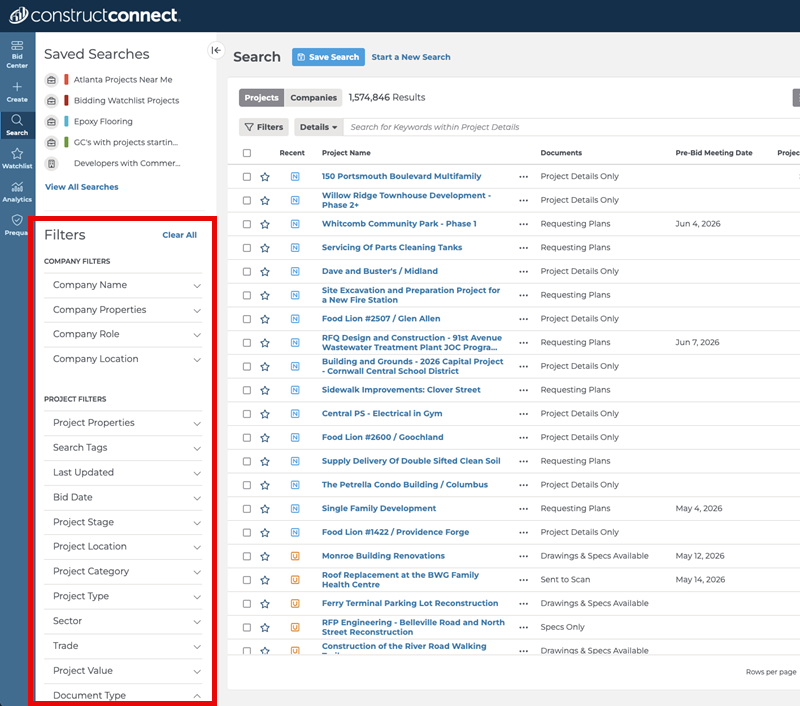
The Search page shows both Company Filters and Project Filters at all times, whether you are viewing Project Results or Company Results.
Search for companies using project criteria
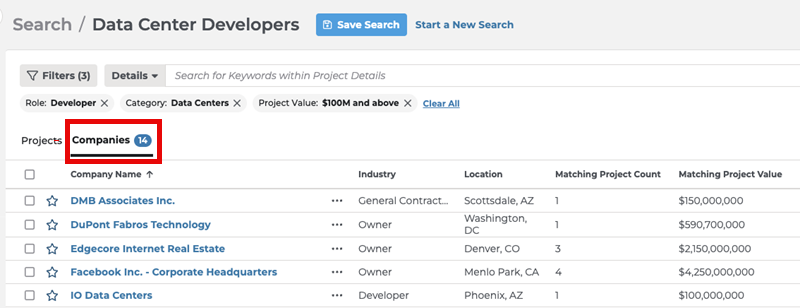
When you are viewing Company Results:
- Apply the Company Filters that match the types of companies you want to find (i.e. Company Role, Company Location).
- Add Project Filters such as Project Type, Project Value, or Project Location.
- Select Companies on the Search page and review the matching companies to identify organizations working on the kinds of projects selected in your Project Filters.
Keep in mind that the companies shown in your results may be limited by your subscription area.
Search for projects using company criteria
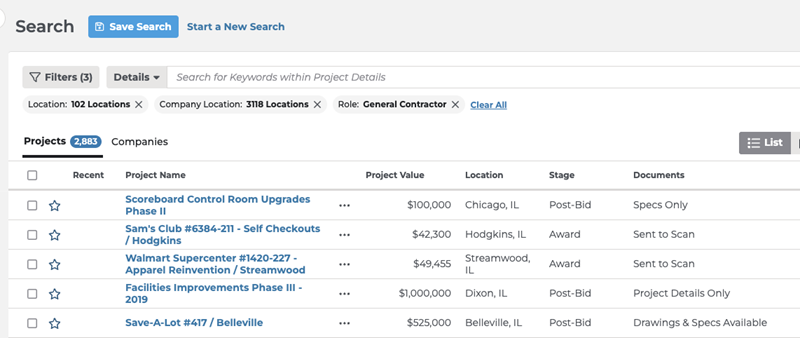
When you are viewing Project Results:
- Apply the Project Filters that match the work you want to find (i.e. Project Type, Project Stage, Project Location).
- Add Company filters such as Company Role or Company Location.
- Select Projects on the Search page and review the matching projects. All projects listed will be associated with companies that also meet the criteria selected in your Company Filters.
Suggested workflow
It can help to start with the record type you know best, then switch views once your filters are in place. For example, if you are more familiar with Project Filters, you may want to start by selecting Projects on the Search page, then narrow the list by Project Type, Project Value, or Project Location. After you’ve done that, switch to Companies to see which companies are associated with those projects. Your filters carry over when you switch between Projects and Companies Results, so you do not need to rebuild either search from scratch.
For example, if you want to find General Contractors in your area who work on projects that align with your business:
- Apply your Project Filters and review the matching projects in the Projects Results view on the Search page to make sure the scope looks right.
- Switch to the Companies Results view on the Search page. Your filters stay applied as you move between views.
- Apply Company Role: General Contractor to narrow the list further.
- Save the search so you can come back to it later as a reusable relationship-building list.
Additional callouts
- Company Filters are pinned above Project Filters to make them easier to find.
- You can use an existing saved search as a starting point, switch the Results view from the Search page (i.e. Projects to Companies, or Companies to Projects), then update it with additional filters. Either save those changes to your existing search or create a new saved search.
- When you save a search, it opens by default in whatever Results view (Projects or Companies) you were viewing when you saved it. For example, if you save the search while viewing Project Results, it will reopen in Project Results the next time you access it. You can still switch to Companies Results and see the corresponding companies with the same filters applied.
Need more help?
Search for Project Intelligence or contact Support through the ConstructConnect Help Center.
 Adding Filters to Your Search in Project Intelligence Using Search Operators in Project Intelligence
Related Articles
Adding Filters to Your Search in Project Intelligence
Working with Your Search Results in Project Intelligence
