
Understanding Project and Company Search Results
The search results page contains information about the project and company listings returned in the search. You can perform a range of tasks with the listings on the page, as described in the following table.
| Field | Project | Company | ||||||||||||||
 | A gold star indicates that the listing is in yourWatch List. You can add and remove a listing from your listby clicking the star. | |||||||||||||||
| A name in bold text means you haven't viewed that listing yet. After you open the listing or mark it as viewed, the name changes to regular text. To change this yourself, see Marking Projects and Companies as Viewed or Unviewed (below). | ||||||||||||||||
| Project Name | The name of the project.The name appears in bold until you view the project. | — | ||||||||||||||
| Company Name | — | The name of the company.The name appears in bold until you open the company's details page. | ||||||||||||||
| Sharing Projects
| ||||||||||||||||
| ||||||||||||||||
| Add to Watch List, Add to Bid Center, Download Projects,Mark as Viewed or Unviewed, Hide or Share Project Listings 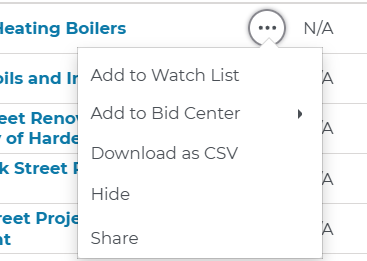 | Clicking on the three dots next to a project listing enables you to manage one or more workflows associated with that project information as noted below:
| |||||||||||||||
| Field | Project | Company | ||||||||||||||
| Recent | The "N" icon indicates a new project that has been added in the last 48 hours. The "U" icon indicates a project has been updated in the last 48 hours. | — | ||||||||||||||
| Invitation to Bid | The Invitation to Bid button appears when the project is an ITB The details of the bid are found within the full project listing. | — | ||||||||||||||
| Location | The physical location of either the project or the company. | |||||||||||||||
| Status | The current status of the project, such as Post-Bid or Award. | — | ||||||||||||||
| Project Count | — | The number of projects on which the company is actively playing a role. | ||||||||||||||
| Bid Date | The date that the project goes to bid | — | ||||||||||||||
| Documents | The status of project documents, such asAvailable or Requesting. | |||||||||||||||
| Last Updated | The date of the most recent significant update to the project. | |||||||||||||||
| Search Tags | A search tag indicates that the project or company is a match to the specific criteria of a search. For more information, see Working with Saved Project Searches. | |||||||||||||||
Marking companies as viewed or unviewed
Bold names make it easy to spot the projects and companies you haven't looked at yet. You can change a listing's status yourself, such as when you opened something by accident or want to flag it to come back to later.
How viewed and unviewed work
- A project or company is marked as viewed automatically when you open its details page.
- Unviewed listings appear in bold. Viewed listings appear in regular text.
- Hiding or unhiding a listing doesn't change whether it is viewed or unviewed.
- If a project is also in your Bid Center, its viewed status updates there as well.
Mark one project or company
- Find the listing in your search results on the Projects or Companies tab.
- Click the three dots next to the listing.
- Select Mark as Unviewed or Mark as Viewed.
Result: The name changes right away. If the change doesn't go through, a message appears and the listing returns to its previous status. Try again.
Mark several projects or companies at once
- Select the checkbox next to each listing you want to change.
- Click Mark as Viewed or Mark as Unviewed in the toolbar above your results.
Result: All the listings you selected update and the selection clears. If some listings can't be updated, a message appears and only those listings return to their previous status.
Both buttons are always available, even when your selection includes a mix of viewed and unviewed listings.
Adding Bulk Actions to Multiple Projects
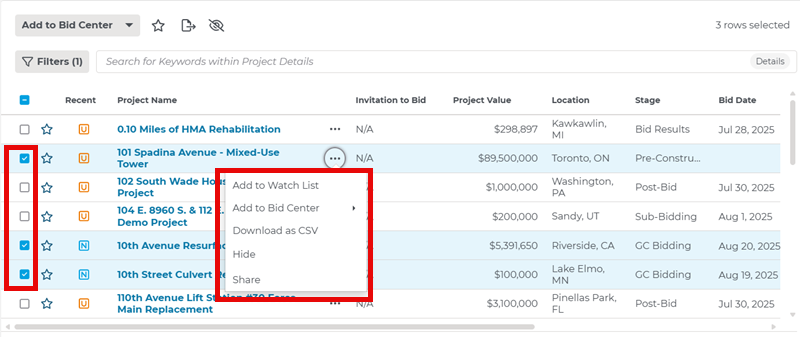
You can apply bulk actions to the projects you selected on the search results page. Bulk actions include adding projects to your Watch List, adding projects to your Bid Center, exporting projects to Excel, marking projects as viewed or unviewed, and hiding projects from future searches.Begin by selecting which projects you want to apply the intended action to by clicking on the checkbox next to their listings.
| Bulk Action | Description |
|---|---|
| Add to Watch List | Click to add or remove the project from your Watch List. A gold star indicates that the listing is being watched. |
| Add to Bid center | Click to add the project to Bid Center in a selected Status. |
| Export to Excel | Click to select to export projects either in Current View (all the columns currently displayed) or in Detailed View (spreadsheet with project parameters and project contacts including Bidders list if applicable). Detailed View Excel file also includes links to Project Detail Page and Document Viewer. |
| Hide | Click to hide the project. The listing appears grayed out in future search results. Reverse the procedure to show the listing going forward. |
| Mark as Viewed | Click to change the names of all the projects you selected to regular text, including any that are already marked as viewed. |
| Marks as Unviewed | Click to change the names of all the projects you selected to bold, including any that are already marked as unviewed. |
Click here to learn how to download project information into an Excel file and see what details will be included.
Related Articles
Understanding the Project Details Page in Project Intelligence (Paid Subscription) | Community
Downloading Project Details Page as Excel File in Project Intelligence | Community