
The first thing you need to do after you log into ConstructConnect Takeoff is create a Project and add Documents.
Step 1 - Create a New Project
Before you can really do anything in ConstructConnect Takeoff, you must create a Project and add Documents (Drawings/Plans, Specs, other Docs).
After logging in, on the Project Tab,
- Click

The Add a Project dialog box opens:
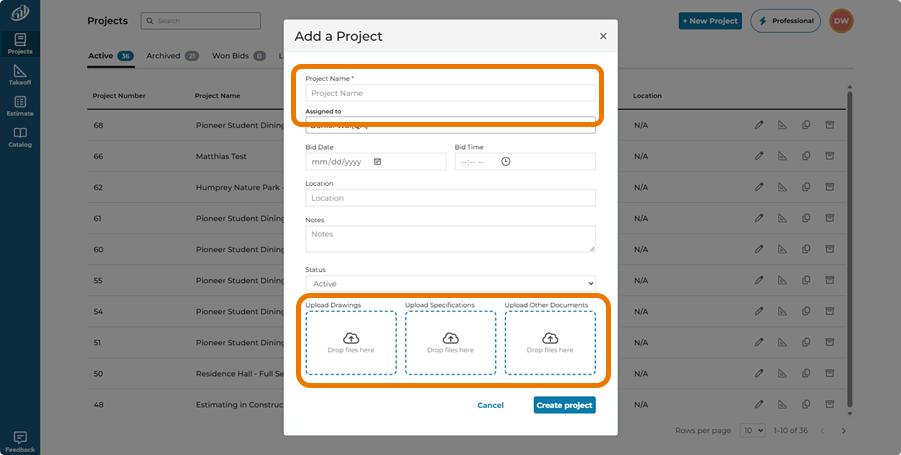
You must give your new Project a Project Number/Internal ID and a Project Name, other fields are optional.
Step 2 - Add Documents
Select which files to upload and how to classify them
Supported Document File Types
PDF, TIFF, and JPG
Now, there are two ways to add documents to your new Project:
- You can Drag & Drop them onto the appropriate document type box (Drawings (Plans), Specifications, or Other) or,
- You can click on one of the document type boxes to browse your computer for the files to add
In our example here, we clicked on the Drawings box to browse to a folder where we have our Drawings stored.
You can select all of the files in this folder or just what you need. For this example, we just want to select a few files:
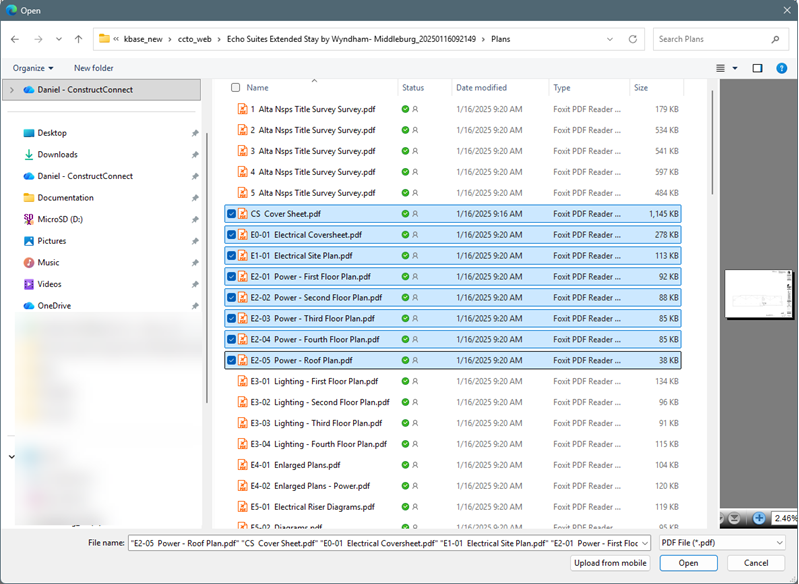
- Click Open
Processing and Upload
Once you add some documents, you’ll see details about each file below the classification boxes:

- Click Review pages to continue
Next you’ll see a preview of all the Pages you’ve added. In this screen,
- Select which Pages you want to include (this applies more when you select a multi-page file and only want some of the files included in the Project)

- Click Create project and upload when you are satisfied with your selection.
Your Documents are processed and uploaded:
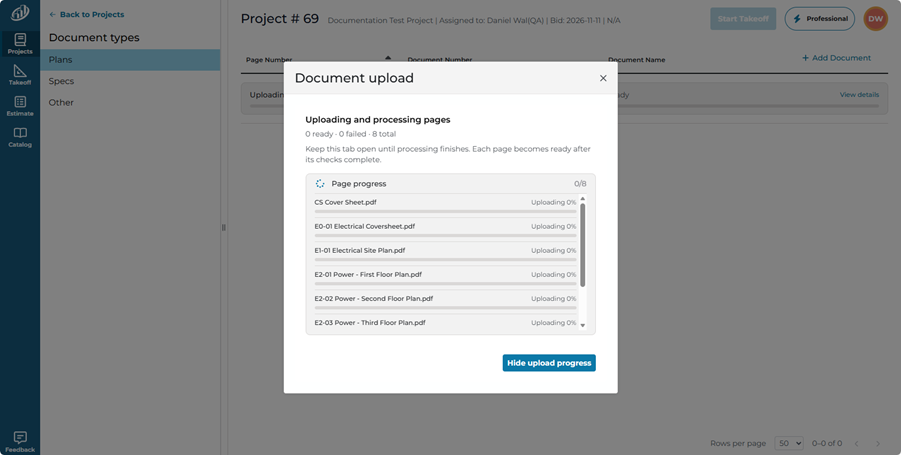
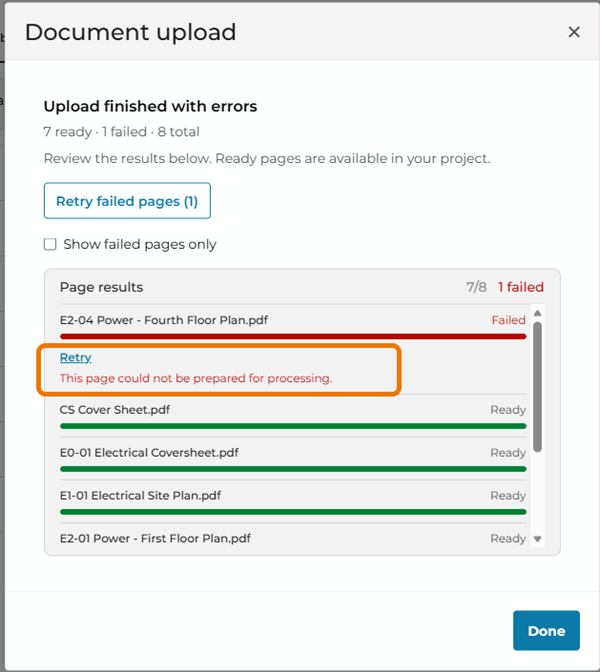
You can close this Document upload screen and monitor progress on the Documents list. If any Page fails to process, you can click on View Details to bring up the progress dialog again to see what happened:
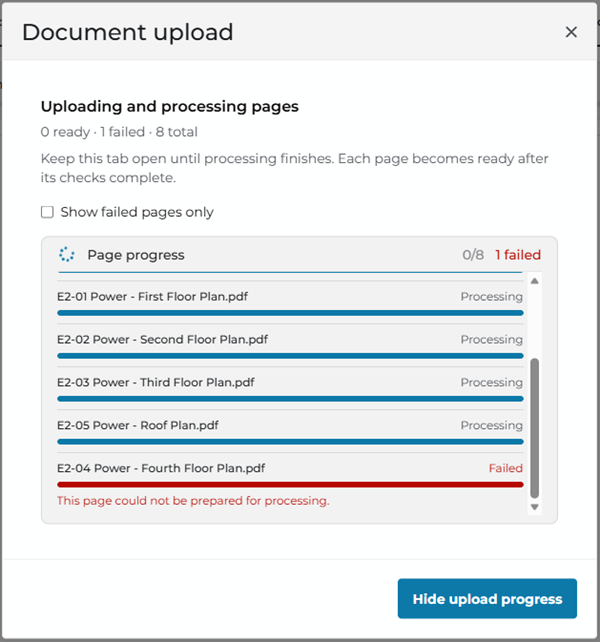
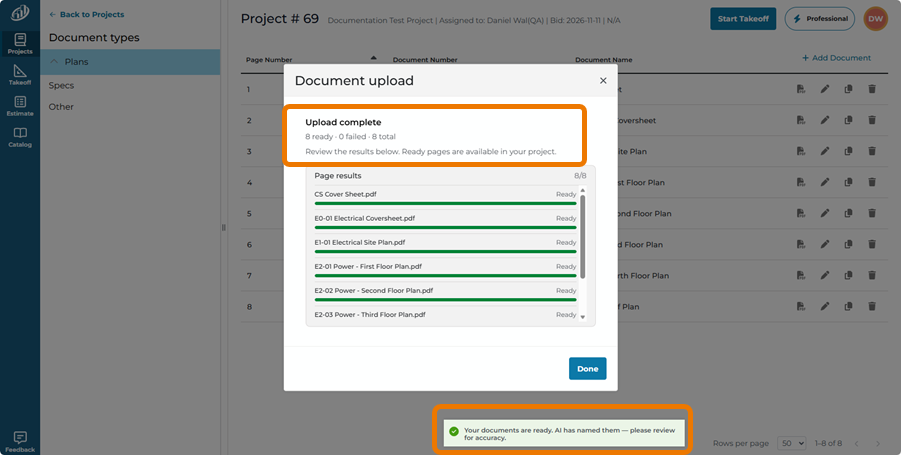
When the rest of the Pages have processed, you'll see them on the Documents list:
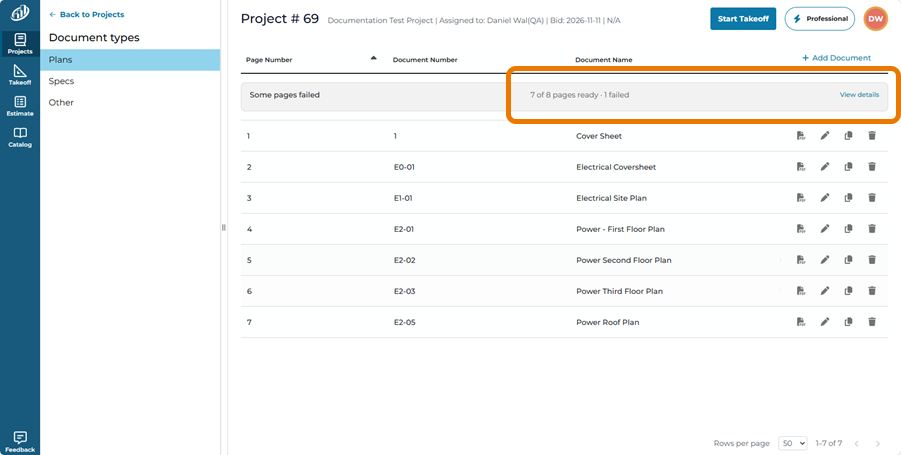
- Click View details and then click Retry next to the failed Page to try processing again.
Your Documents are processed and uploaded and you'll see a pop-up notification at the bottom of the app, even if you have the Document Upload window closed.
Editing and Viewing Documents
Use the buttons on the right to View  (changes based on the file type of the document), Edit
 , Duplicate
 , or Delete
 each Page in this Project.
 Create Your ConstructConnect Takeoff Account and Log in | Get Real Results in ConstructConnect Takeoff with Auto Takeoff in Less than 2 Minutes  |