

The taskbar options in the header at the top of the page gives you access to:
-
Recently viewed projects and companies
-
Notifications
-
Training and Support
-
Profile Preferences
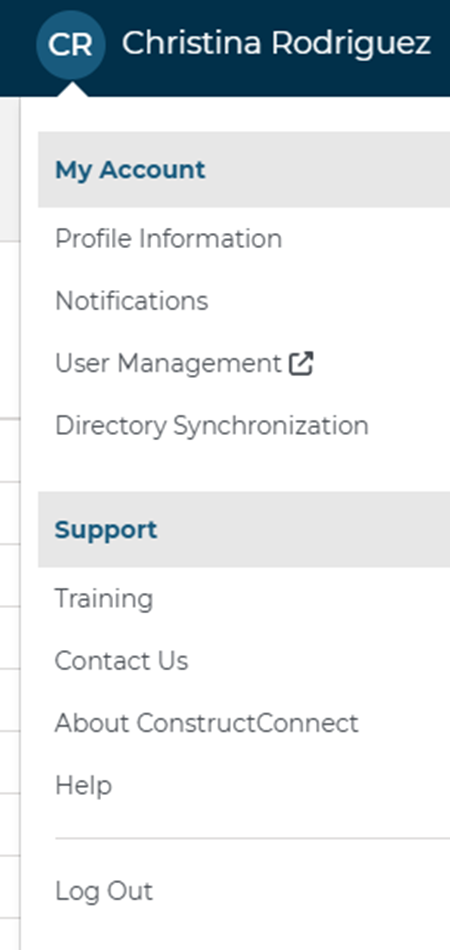
The following table describes the functions you can access from each option in the header menu.
| Option | Description |
|
| Recently Viewed Projects and CompaniesAccess a list of your recently viewed projects and companies. For more information, see Recently Viewed Projects, Companies and Notifications. |
 | NotificationsView all of your notifications. noteNote: A blue dot indicates unread notifications. Note: A blue dot indicates unread notifications. For more information, see Recently Viewed Projects, Companies and Notifications. |
 | ChatClick to launch a chat window with Customer Service. |
|
| My AccountAfter selecting an option under My Account, you can access the subsections for Profile Preferences, and Notifications using the menu icon on the left side of the screen. |
Profile InformationYour Information View and edit your profile information, including your name, address, and contact information. Your Company Information View your company information, including company name, business type, and address. noteNote: If you want to suggest a change to your company information, please contact your company administrator. Note: If you want to suggest a change to your company information, please contact your company administrator. For more information, see Setting Personal and Company Information. NotificationsSettings Edit your notification settings, including alters on:
For more information, see Using the Settings and Privacy Menu. | |
Support | |
| Training Click to open the ConstructConnect training portal. Contact Us Click to contact Customer Service. About ConstructConnect Click to view the current release number for the product and privacy and terms of use statements. Help Click to open the ConstructConnect Platform Online Help. |

Related Articles
