

This article includes Latest Release Notes and all Historical Release Notes for PlanSwift’s supported versions (10.3 and newer).
You can download the latest version at the PlanSwift Downloads page.
Current Release:
PlanSwift v11.0.0.191 Updated Installer (Released 2026-09-21)
This update address a security vulnerability in PlanSwift.
PlanSwift 11.0.0.191 and the Takeoff BOOST™ update below must be installed together.
What happened?
Takeoff BOOST licenses were not applied properly to PlanSwift so the AI Tools (Auto Takeoff, Auto Count, etc.) were inaccessible.
Who is affected?
All PlanSwift 11 users on Advanced or Premium Maintenance or an Essential or Core subscription.
System administrators must deploy this to all machines running PlanSwift 11.
What you need to do?
-
Install this update: open PlanSwift and click on the PlanSwift Tab, then Check for Updates, or download the installer using the link above.
This release contains only the licensing fix, there are no changes to features or workflows.
Takeoff BOOST™ (AI Tools) Add-On Update (2026-10-19, version 1.0.23)
This is a maintenance update that fixes an installation bug in the Takeoff BOOST add-in.
This release automatically downloads and installs the Current Version if PlanSwift is not detected upon install. It’s available on the PlanSwift Installer Downloads page, linked above.
Takeoff BOOST’s Auto Count, Auto Scale, and Auto Bookmark are available to PlanSwift users on any subscription and those with Advanced or Premium Maintenance.
Auto Takeoff is available to PlanSwift users on a Core subscription or Premium maintenance.
Fixes
-
Takeoff BOOST’s AI Tools were not installed properly if PlanSwift was not installed in the default location.
How to update Takeoff BOOST
You should receive a pop-up notification that there is an update available.
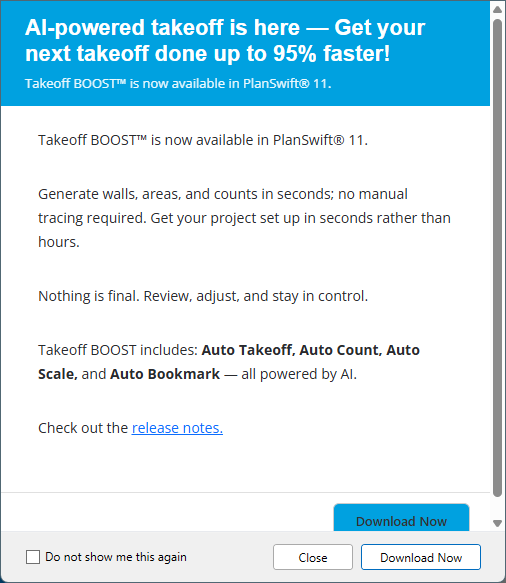
- Click Download Now and the update installs automatically.
If you don’t receive a notification to update Takeoff BOOST™ when you open PlanSwift 11, follow the steps below:
-
Open PlanSwift
-
In your Windows Task Bar, click the “show hidden icons” arrow.
-
Right-click the PlanSwift logo and select “Check for Updates”
or download the update from the PlanSwift Downloads page.
Questions? Contact PlanSwift Support at support@planswift.com or 1-888-752-6794.
Previous Versions
Takeoff BOOST™ (AI Tools) Add-On Update (2026-09-21)
This update to the Takeoff BOOST AI-Powered Tools for PlanSwift includes a fix for a bug introduced in the 9/2 update.
Fixed
Enable Takeoff BOOST properly.
PlanSwift v11.0.0.185 Updated Installer (2026-09-14) and Takeoff BOOST™ (AI Tools) Add-On Update (2026-09-14)
These updates addressed a security vulnerability in PlanSwift and a inconsistency in Auto Count results.
2026.09.14 This installer is a companion to the Takeoff BOOST™ installer released on 9/14. The Release Notes are the same as the 8/31 release.
What happened?
A vulnerability was identified in PlanSwift 11 that caused user login credentials to be written to local application log files.
Credentials were stored locally on each machine and were not transmitted to or accessible by ConstructConnect.
Exposure is limited to individuals who had access to the local machine's file system.
Who is affected?
All PlanSwift 11 users.
System administrators must deploy this to all machines running PlanSwift 11 and treat all accounts on affected installations as potentially exposed and require password changes as a precaution.
What you need to do?
-
Install this update: open PlanSwift and click on the PlanSwift Tab, then Check for Updates, or download the installer using the link above.
-
Change all user passwords: after updating, every user should change their PlanSwift password.
This release contains only the security fix. There are no changes to features or workflows.
Takeoff BOOST™ (AI Tools) Add-On Update (2026-09-14)
This update to the Takeoff BOOST AI-Powered Tools for PlanSwift includes a fix for a bug introduced in the 9/2 update.
This release automatically downloads and installs v.11.0.0.185 if it is not detected upon install. It’s available on the PlanSwift Installer Downloads page, linked above.
Takeoff BOOST’s Auto Count, Auto Scale, and Auto Bookmark are available to PlanSwift users on any subscription and those with Advanced or Premium Maintenance.
Auto Takeoff is available to PlanSwift users on a Core subscription or Premium maintenance.
Fixes
Auto Count
-
Auto Count was matching the wrong symbols and returning incorrect results.
PlanSwift Takeoff BOOST Installer Update 20260902
This update to the Takeoff BOOST AI-Powered Tools for PlanSwift includes several bug fixes.
Fixes
Auto Count
-
Fixed an issue where Auto Count undercounted symbols on rotated, flipped, or mirrored pages. Symbols in any orientation are now detected accurately.
-
Fixed an issue where Auto Count incorrectly labeled window symbols as "window window," causing problems with item placement, duplication, and selection.
Auto Takeoff
-
Fixed an issue where the wall-type icon dropdown appeared blank when opened.
-
Fixed an issue where Auto Takeoff ignored the selected item-type filter and ran all types regardless of your selection.
-
Fixed an issue where Auto Takeoff results were misaligned on rotated pages.
-
Fixed an issue where Auto Takeoff could be re-run on a page even when results already existed for those items.
Auto Scale
-
Fixed an issue where Auto Scale applied the wrong scale on high-quality single-scale sheets.
-
Fixed an issue where Auto Scale failed on machines where the Windows decimal symbol is set to a comma.
-
Fixed an issue where Auto Scale failed when a page name contained a property reference.
-
Fixed an issue where Auto Scale omitted the inch mark (") from fractional scales, causing the scale to be set incorrectly until manually corrected.
-
Improved Auto Scale accuracy on multi-page PDFs.
Reassign Takeoff
-
Fixed an issue where Reassign Takeoff failed for all linear (wall) items.
-
Fixed an issue where the existing items list appeared empty after navigating away during an Auto Takeoff run.
-
Fixed an issue where Reassign Takeoff failed when a template name contained a property reference.
-
Fixed an issue where applying a template to an AI net area showed only the Roofing folder, omitting other area-type templates.
Auto Bookmark
-
Fixed an issue where symbol links were placed outside the page bounds, making them unreachable.
-
Fixed an issue where Auto Bookmark showed "loading" indefinitely and failed to populate results.
-
Fixed an issue where Auto Bookmark results from one job appeared in a different job if you switched jobs while it was running.
-
Fixed an issue where deleting bookmarks from the panel left orphaned highlighters on the page that accumulated across reruns.
-
Fixed an issue where accented characters in bookmark text were corrupted.
-
Fixed an issue where Auto Bookmark crashed on large multi-page PDFs due to memory limitations.
-
Improved consistency of symbol detection across multiple runs on the same page.
-
Improved accuracy of symbol link placement on pages stored at non-standard DPI.
Installer and Compatibility
-
Fixed an issue where the Takeoff BOOST tools disappeared after an update on machines running PlanSwift 11 builds older than 11.0.0.162.
-
Fixed an issue where the Takeoff BOOST tools disappeared when PlanSwift's display language was set to a non-English language.
-
Fixed an issue where the Takeoff BOOST installer silently installed PlanSwift 11 without displaying the End User License Agreement.
-
Fixed an issue where clicking one of the Takeoff BOOST tools buttons rapidly opened multiple welcome windows stacked on top of each other.
-
Fixed an issue where the upgrade prompt for users without a Takeoff BOOST license showed a generic message instead of the correct information page.
Takeoff BOOST™ Branding
-
Updated the Takeoff BOOST™ label in the PlanSwift ribbon to reflect the correct trademark.
-
Fixed an issue where the Takeoff BOOST tools’ dialog boxes title bars displayed the individual feature name (Auto Takeoff, Auto Count, etc.) instead of Takeoff BOOST™.
-
Updated the text in the Takeoff BOOST tools’ dialog pop-ups to reflect current brand messaging standards.
PlanSwift with Takeoff BOOST™ AI-Powered Tools Update Release Notes (2026-06-09)
This update to the Takeoff Boost AI-Powered Tools for PlanSwift includes several bug fixes.
Fixed
- Net Areas and Ceilings are duplicated when both are selected
- When reassigning Count objects, not just the ones selected are reassigned
- Improvement to the Update Notification and Installation workflow
- In the Reassign takeoff dialog box, user can select both “Delete Original Item” and “Only Selected Sections” - they should be mutually exclusive
- The Upgrade Available dialog box shows “Internet connection” error instead of the upgrade content
- Opening the License Manager dialog box causes the Status Bar pop-up to show “license disconnected”
- Takeoff Boost is not installed properly if PlanSwift 11 is not installed to the default location
PlanSwift with Takeoff Boost™ AI-Powered Tools Release Notes (2026-05-06)
This update to PlanSwift includes Takeoff Boost™ which adds exciting AI-Powered Automation Tools such as:
- Auto Takeoff - Automated Takeoff that delivers a Page of linear, area, and count takeoff in seconds.
- Auto Count - if Auto Takeoff’s 12 Count objects are enough, you can virtually count “anything” on your plans.
- Auto Scale - Auto Scale determines what the correct scale is for each Page.
- Auto Bookmark - creates Bookmarks to plan details and Shortcuts to those Bookmarks, in minutes.
These options are all located on the Tools ribbon bar:

New Features: Takeoff Boost: AI-Powered Automation Tools
Auto Takeoff
Takeoff Boost’s Auto Takeoff delivers a full page of takeoff results in seconds. Brought to you by the company who defined Digital Takeoff, Auto Takeoff is ConstructConnect’s proprietary AI-Powered automated takeoff solution that can deliver your first draft of takeoff results 95% faster than doing it manually.
- Fast? Typically, you can expect a full Page of takeoff results in under a minute.
- Accurate? Users tell us Takeoff Boost is 95% accurate, and improving.
Let’s get this out of the way, no technology or automation can take the place of a seasoned, knowledgeable estimator. Takeoff Boost is not “complete, automated takeoff” that a user can use, with the press of a magic button, to estimate an entire project. Takeoff Boost gives you a great head start on your takeoff, and our Artificial Intelligence models are improving all the time, but as the estimator, you still play a critical role in bringing “human experience” to review and fine-tune the project.
Learn how to use Takeoff Boost here: Using Takeoff Boost™
Auto Count
This isn’t your grandpa’s Auto Count, this is all-new, AI-powered Auto Count that uses technology honed by Takeoff Boost to count anything you identify on your plans. This is a great additional to PlanSwift, especially for electrical contractors and the plumbing and HVAC trades.
Simply select whatever you want to count (define the object) and then select the Pages you want to search on, then let Auto Count do it its thing.
Read the User Guide article for step-by-step instructions here: Using the All-New AI-Powered Auto Count
Auto Scale
Setting Page Scale is critical to generating accurate takeoff results. Using Auto Scale, you can set the scale on your entire Plan Set, or any number of selected Pages in seconds.
Check out how to use Auto Scale here: Using Auto Scale
Auto Bookmark
Gone are the days of manually creating bookmarks to make navigating between floor plans and detail pages easier. Auto Bookmark does this for you, in seconds! There are two ways Auto Bookmarks works:
- Embedded Links - some PDFs include embedded cross-page links, if Auto Bookmark detects these, you will be prompted to use them. Typically these only point to a linked Page, not the actual detail, but the Bookmarks are created within seconds and are very useful.
- AI-Powered - if you opt to use AI, or if embedded links don’t exist in your plans, your plans are uploaded to our cloud servers where they are analyzed and then links on Architectural and Structural plans are automatically created to the details. This is more precise than embedded, but can take several minutes for the results to be returned. You can use PlanSwift to perform manual takeoff, annotations, or estimating while AI-powered Auto Bookmark is running.
Detailed instructions for using Auto Bookmark are here: Using Auto Bookmark
Reassign Takeoff
On the Takeoff Boost toolbar, you’ll find the Reassign Takeoff button, this allows you to select one or more takeoffs and reassign them to a different takeoff item or assembly.
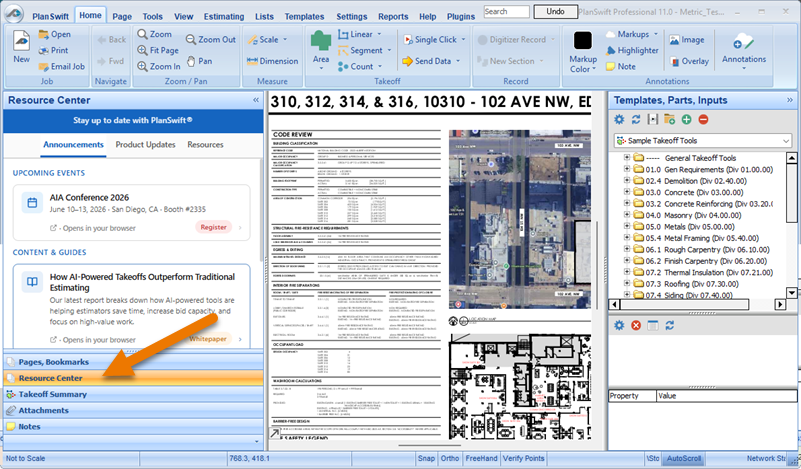
Resource Center
There is a new Resource Center panel on the Home Tab that shows you ConstructConnect Announcements, Product Updates, and Training, Support, and Tips (Resources).
Changes
- There are options for users to choose from for their subscription/maintenance:
- PlanSwift Core Subscription or Premium Maintenance: includes unlimited access to Auto Count, Auto Scale, and Auto Bookmark, and Takeoff Boost.
- PlanSwift Essential Subscription or Advanced Maintenance: includes unlimited access Auto Count, Auto Bookmark, and Auto Scale.
- PlanSwift Standard (on-prem only): no access to any AI-powered features.
- There is a new background utility that checks for product updates automatically. You’ll find it in the Windows System Tray, in the bottom-right corner of your Windows desktop.
2023-07-10 PlanSwift v.11.0.00.129
These Release Notes include those from the original release of PlanSwift 11 (build 89), that was pulled from active distribution to address some upgrade issues reported after roll-out.
For more information, watch the What's New Video. and review the detailed, "value-prop" PDF. (Hold down your <CTRL> key before clicking to open those links in new tabs.)
Eligible users can download PlanSwift 11 from MyAccount.
New Features
Windows 11 Support
- PlanSwift 11 is now supported on Windows 11 Professional and Enterprise (see ConstructConnect Desktop Product Lifecycle (Sunsetting/End-of-Life Guideline) for our support of older versions of PlanSwift and Windows).!--[cdata[sunsetting>
Improvements to Upgrade Installations
During upgrade installations, PlanSwift 11 installs to its own directory, preserving your old installation and data.
The first time you launch PlanSwift, you are prompted to import previous versions' Templates and Projects.
Custom Storage Location
If you used custom Storages in your previous version of PlanSwift, instead of importing data from a previous version, you just point PlanSwift 11 to that custom location, then your Jobs and Templates will be available to you.
See Related Articles for more information.
Improvements to the workflow to open a Page in New Tab or New Window.
- Introduction of an "AutoOpen" toggle that allows a user to navigate to different Pages in the list without them automatically displaying in the main window.
There three new buttons at the top of the Pages window:
 - Opens the selected Page in a new Takeoff tab (within the current window)
 - Opens the selected Page in a new Takeoff window
 - Disables the automatic loading of a Page when you click it in the Pages list, To open the Page, double-click on it in the Pages list
New options for closing additional Tabs/Windows
- Several new options to open and close Tabs or Windows on the context-menu:
Previous versions:

PlanSwift 11:

2022-09-08 PlanSwift 11.0.0.89
Release Notes included in the above v.129
This version was pulled from distribution on the release of v.11.0.0.129.
2022-03-03 PlanSwift 10.03.0.56
New Features
More Scales in Dropdown Menu
Added 11 more pre-set scales to the dropdown menu.
- 1/64" = 1' 0"
- 3/64" = 1' 0"
- 1" = 25' 0"
- 6" = 1' 0"
- 1 : 5
- 1 : 25
- 1 : 75
- 1 : 150
- 1 : 250
- 1 : 400
- 1 : 2000
Changes
Updated "Show Me How" Videos
Updated Video links in the application (more to come in 2022)
- Starting a New Project
- Setting a Page Scale
- Opening a Project
- Creating a New Area
- Creating a New Count
- Creating a New Segment
- Creating a New Linear
- Activating PlanSwift
Single Click Subtract Section
Removed this option non-functioning option from the takeoff object right-click menu.
Known Issues
- After importing a Job using PlanSwift Connect, if it is the last opened job, the job does not automatically open after restarting PlanSwift. Workaround: Users can open the Job manually. (Will be fixed in future release)
- Deleted Pages Recycle Bin Folder is not clearing itself periodically. Deleted Pages are stored in a folder called Recycle Bin that should clear periodically to free up space on the user's hard drive. Workaround: Users can clear/empty the Recycle Bin manually. (Will be fixed in a future release)
- PLAN-8559 - Color properties on custom templates is not persisting correctly.
