

Many of our clients ask us about virtualization and running their products over Azure, Citrix, etc. Let's look at some of those questions:
- What are Azure, Citrix, and Remote Desktop and Why Would I Be interested in Using Them?
- Can I virtualize my installation my products using Azure, Citrix, Remote Desktop or some other virtualization solution?
- How do I install the products in a virtualized environment?
- Storing Databases and Image Files:
- Can I virtualize my Microsoft SQL Servers using Azure, VMWare, or other server utilities?
- Can I use Azure Databases with Classic products?
- Where should I store my users' image files (plans, drawings, whatever you call them)
- Are there any trade-offs if I virtualize my desktops and/or software?
- Do you have any suggestion for using virtualized products a better experience for end users?
For the rest of this article, we are going to assume you understand what is meant by virtualization and you are looking for information on implementing or troubleshooting virtualization in your organization.
Be sure to review Using SQL Server to Share Databases in Classic Products if you are looking to provide a shared data environment. SQL-Server (supported), running on an Azure Virtual Machine is the the same as Azure-SQL (not-supported).
What are Virtualization Solutions?
You may hear the terms Azure, Citrix, Remote Desktop, VMWare, Parallels, but may not understand what is meant or how you would use them with regard to your takeoff and estimating products.
Azure, Citrix, Remote Desktop all solutions that allow a company to "virtualize" computers, servers, and applications to make distributing, maintaining, and upgrading those systems easier and more cost efficient. For more information on "virtualization", see related articles.
The biggest difference between Azure and Citrix or Remote Desktop (or other on-premise systems) is that Azure allows you to virtualize in the cloud. You don't even have to maintain servers on your end to host the virtualization - Azure does it all. There are other cloud-based virtualization solutions similar to Azure such as Amazon Web Services and Google Cloud. ConstructConnect does not endorse any particular virtualization solution or method.
Another consideration is what are you virtualizing?
- You can virtualize a user's entire desktop experience (Windows 11, for example) and use "thin clients". They may not have a real Windows PC in front of them, or it is very basic, low-powered one, simply to connect to the network. They connect to this remote desktop and work in it - just like they would their physical desktop including most installation tasks.
- You can virtualize and distribute/publish just the applications. Citrix and Remote Desktop servers are the leaders in this. The apps get installed on the server and the users run a copy of that application in a remote session.
Remote access environments can be configured to run over a local network (within an office with the server located on-site) or over a VPN or WAN. This allows remote users to benefit from software they may not otherwise have access to - your IT department could allow a very remote user access to your business systems without having to install or license the product on their physical computer.
Can I Install Apps in Virtual Environment or Distribute/Publish Them?
Yes, but ConstructConnect cannot provide technical support or assistance with configuring or troubleshooting network environments or virtual/sharing environments. We do not test or certify the applications for use in a remote desktop or published-application environment and cannot guarantee the program will provide acceptable performance or suitability to your company's needs when used in this manner. Our experience with those customers who have virtualized On-Screen Takeoff, PlanSwift, Quick Bid, and Digital Production Control in either Azure, Citrix, or some other remote-access environment provided the information for this article. This article is provided as a general guideline based on our observations only and should not be considered a substitute for the expertise a qualified IT professional experienced in setting up remote/distributed environments and applications.
For the rest of this article, we may refer to Azure or Citrix, but the concepts are the same.
Due Diligence
It is your company's responsibility to determine which applications are suitable for installation/publishing in a remote access environment. ConstructConnect is not responsible for ensuring applications will perform acceptably in every environment/situation nor do we guarantee that they will perform acceptably in your particular environment. This is where a qualified IT professional who has experience with remote desktops comes in - they can help your company develop a plan of action that meets the needs of the organization and the end users.
Resources and Requirements
Each user session (each person who runs a remote desktop or launches a distributed/published application) draws resources from the server providing the remote access services. It's important that your IT department keep this in mind when setting up/building the server.
Example - On-Screen Takeoff distributed to 5 concurrent users
As an example, only, let us say we are configuring a server to publish On-Screen Takeoff to a maximum of five concurrent users. Based on current On-Screen Takeoff System Requirements, on top of the system requirements to run the server operating system (Windows Server), the minimum additional hardware requirements for five simultaneous users, are:
- Multi-core processor(s) - On-Screen Takeoff is a graphics-intensive program and taxes the CPU when rendering plans and calculating takeoff results
- At least 20 GB RAM over and above the RAM required to run the Server operating system (this only provides each user with a virtual desktop with 4GB of RAM, this barely meets minimum requirements for OST - 8GB per user would be better meaning an additional 40GB RAM)
- Sufficient storage space for each user's temporary files. When using a remote desktop solution, no data should be stored on the Server's hard drives or on the users' virtual hard drives. You must employ SQL databases, stored on a completely different server.
- Your SQL Server databases and all image files must be stored on a separate server (SQL Server should be used for all remote access applications, see Using SQL Server to Share Databases in On-Screen Takeoff and Quick Bid). Do not use "local" (local to the user's remote desktop session) Access databases and do not store image/plans on the users' virtual hard drive.
- The server providing remote desktops/applications server should be a dedicated machine and should not be providing other services such as license management, SQL database server, or e-mail servicing, nor operate as your domain controller.
- Your network needs to be fast, how fast? That's up to you and what you and your users determine is "acceptable" performance. Your network is likely your number one variable - one never knows what other users are doing at any particular time or which machines may be downloading updates, streaming contact, hosting meetings, etc.
- If you are using On-Screen Takeoff and Quick Bid interactively, you must publish a virtual desktop. Do not publish the applications individually, this does not work.
- Five Windows licenses (usually a CAL) - one for each Remote Desktop you are publishing.
Additional concurrent users require additional hardware resources (added RAM, a more powerful processor, more Windows licenses, etc.).
For assistance with hardware needs/configuration, contact an IT professional who is certified in whichever remote access software you have chosen. ConstructConnect does not provide this type of software nor do we provide consulting services for configuring these environments.
Even with the most top-of-the-line server and network, end users will notice some performance lag. How much? That depends on just how robust your setup is, but if you and your IT professional optimize your configuration, the lag should be minimal and acceptable to most users. This is where testing comes into play - make sure this setup is going to work for your users before you invest too much time or resources.
How do I install the products in a virtualized environment?
This depends on if you are distributing the applications through a product such as Citrix or Remote Desktop or if you are virtualizing the users' entire desktop experience.
If your users are using On-Screen Takeoff and Quick Bid interactively, you must virtualize their entire Windows desktop, not just the applications.
Just because users can access a shared database or job file, does not mean they can work in the same Project or Job at the same time.
Contact Microsoft for licensing requires for remote desktop installations and publishing apps.
Distributed/Published Apps
On-Screen Takeoff, PlanSwift, or Quick Bid are installed on the virtualized server itself. Installation of these applications into a Citrix Server environment may require steps that are different from the standard workstation installation instructions. Only a qualified IT professional should install the applications to ensure that appropriate steps are followed for your particular environment. Once installed, the applications are “Published” so that users will be able to access them.
ConstructConnect does not provide technical assistance with configuring Citrix or publishing applications.
Remote Desktops/Virtual Desktops
If you have virtualized a user's entire desktop environment, he or she can install the applications "locally" on that desktop. They will update and maintain the installation, just as if the products were installed on their physical computer. Alternately, you can remotely install On-Screen Takeoff or Quick Bid using the MSI Installer packages available from each products Info and Downloads Page (see Related Articles). You push these installers out to the end users through their login scripts and run the installer silently. On Center does not provide technical assistance with remote installations. If you are unfamiliar with writing scripts or distributing software in this manner, you can still push the installer down to the users' computers with instructions (a link to the relevant article(s) in this kBase, for example) on installing the products for themselves.
Regardless of the method you use for virtualizing the applications, it is vital that you do not store databases or images to the users' virtualized workspace, the virtualization server, or the users local machine. All data must be stored on a separate (SQL) server.
Licensing
First, you must be using the latest release of any of our desktop applications; this vastly simplifies licensing the applications.
These articles will help you license your software:
- PlanSwift 01.02 - Licensing PlanSwift (Activation)
- On-Screen Takeoff - 01.02.01 Launching and Licensing the Application
- Quick Bid - 01.02 Licensing Quick Bid (Unlocking Full Functionality)
For On-Screen Takeoff and Quick Bid, which licensing method you choose is really a matter of how you want your users to return licenses. We recommend using Server Codes because when the program is closed, the license is automatically freed up for other users. If you use License Keys, it is possible for the end user to activate the code, then something happens to his or her virtual desktop, and the license is "stuck" on that virtual machine.
Each concurrent user requires a license/seat. If you are setting up your virtualization for ten users, you must have a license for each user (because they could all run the software at the same time). If you don't own enough licenses, it is very possible that one or more of your users will not be able to use the software when they need it.
It is a violation of the Electronic End User License Agreement (EULA) to use ConstructConnect products in any manner which attempts to or successfully circumvents licensing security restrictions. Violations can and will be prosecuted to the fullest extent of the law.
Data Storage (Databases and Images Files/Plans)
By default, desktop applications store their data/files on a users “C” (local) drive.
This is not an acceptable solution when using a remote desktop/published-application environment.
- Databases (On-Screen Takeoff and Quick Bid) - to ensure adequate performance, stability, and security, you must use SQL Databases instead of the standard Microsoft Access databases. The SQL server must be a separate machine (from the virtualization server) as there are extensive data read-writes involved with our software (image movements, performing takeoff, storing values, etc.). See On-Screen Takeoff, Quick Bid: Using SQL Server to Share Databases for details.
- Job Files (PlanSwift) - you must set up a “network storage” location for job file storage, see PlanSwift 10.04.01 - Configure PlanSwift to Connect to a Network Data Storage Location for details.
- Image Files/Project Plans - image files (plans, drawings, whatever you call them) should not be stored within a user's virtual environment, although they can be stored on the virtualizing server's hard drives if necessary. There is not a lot of server activity involved with storing image files, but if you are going through the trouble of virtualizing desktops and applications, do it right the first time and put users' project plans/image files on a stand-alone image repository server.
There are several reasons for de-centralizing your applications and your data. One of the main reasons for storing data on a separate server is to keep it safe from being deleted accidentally. Remember, users are running a session of Windows when accessing a virtualizing server, they are not actually running the software on their physical machine. A session can be reset or deleted and any changes (databases and projects created or updated, files downloaded, etc.) made to that session could be lost immediately and permanently. Again, this is something whoever sets up your virtualizing needs to configure, and not something with which ConstructConnect provides assistance.
Another reason for decentralization is reducing the chances that failure of a single machine would bring down your entire operation.
Never store a working Microsoft Access database on a network drive nor share a Microsoft Access database with other users - your data will get corrupted.
All users must type in the SQL Server name exactly the same (we recommend lower-case) or one user will cause interactive bids to disconnect.
For On-Screen Takeoff and Quick Bid, your IT department can automate database connections in your login scripts. These are simply entries in the HKEYCurrentUser registry hive - analyze the "HKEY_CURRENT_USER\Software\On Center Software\" Registry keys to determine what Registry Keys need to be set when users log in to point them to the appropriate servers.
Performance Concerns
Let's get this out in the open right away. Anytime you are accessing a product over any network (including the Internet), its performance is never going to be the same as running the program on your local machine. Networks are fast, but there is no forecasting who is going to be using how much bandwidth at any given time. That being said, there are things you can do to mitigate some of the performance concerns and issues that your user may encounter.
Because On-Screen Takeoff and PlanSwift are a graphics-intensive programs, users may experience noticeably reduced performance when running the applications in certain remote environments. Especially if they are "panning" (either by moving the page using the Pan tool or by drawing takeoff past the edge of the page so the program Pans the image automatically). Remote connections may limit the color depth of a user’s display and may compress the display, which results in a loss of detail when viewing plans and can make it more difficult to use the application due to a loss of image quality. An experienced IT professional who has experience configuring and optimizing remote/virtual desktops may be able to find ways to fine-tune the performance of your environment, however application performance will always be slightly slower when using the applications, this is just the nature of using the product over a network.
Best Practices & Suggestions - Examples
Publishing Just the Applications
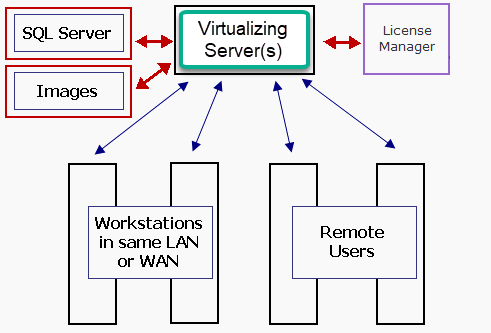
In the following example, On-Screen Takeoff is installed on the virtualizing server. On-Screen Takeoff pulls a license from the license manager (in the cloud), they are using SQL databases that are stored on another server, and their Projects are pointed to image files stored on a third server. Users must open SQL databases because they will have to enter their unique login information for the SQL database. Depending on how you've set up SQL, you may be able to automate database connections in your login scripts - these are simply entries in the HKEYCurrentUser registry hive - analyze the "HKEY_CURRENT_USER\Software\On Center Software\" Registry keys to determine what Registry Keys need to be set when users log in to point them to the appropriate servers.
When a user runs the published app (opens On-Screen Takeoff from their perspective), the software pulls a license from the license manager (if available) and opens the database from the data server (once). When another user logs in and opens his or her session, a separate license is pulled from the license manager, and they can open whatever SQL database they choose. All application settings are stored in the Registry key noted above and are per-user, not system-wide. As long as you are not resetting their sessions, the program will "remember" their licensing Server Code and database connection.
Virtualizing the Users' Desktop Environment
Virtualizing the entire desktop means each "session" has its own, unique installation of On-Screen Takeoff, PlanSwift, or Quick Bid.
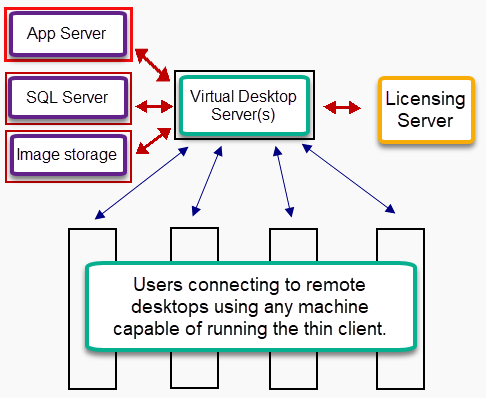
No matter how you virtualize or what you distribute, you must own sufficient licenses for each concurrent user - each logged in user pulls his or her individual license for the software.
Related Articles
