

Issue
You are distributing On-Screen Takeoff, PlanSwift, Quick Bid over a Citrix, Azure, or Windows Remote Desktop environment and and have additional questions not covered in the Related Article.
Discussion
ConstructConnect does not test its desktop products in any virtual environment so we cannot guarantee they will work. They are tested in accordance with our System Requirements for each application. This article contains guidelines for you to follow if you are distributing a desktop application remotely.
If a user stores anything in their remote desktop's 'local' drive (typically labeled as “C”), it could be lost if their image is reset or reloaded. Anything lost in this scenario is gone for good.
Recommendations
Job Files (PlanSwift)
You must store your PlanSwift Jobs in a network storage. See PlanSwift 10.04.01 - Configure PlanSwift to Connect to a Network Data Storage Location for details.
PlanSwift keeps everything related to a single in a “job” folder; your images (plans) are copied there, and all your takeoff and estimating data is stored there, too.
Image Files (On-Screen Takeoff)
Because On-Screen Takeoff only creates a “link” to image files, you must store them in a central, network location.
User should have full-edit rights to this location so they can convert non-TIF files to TIF format for improved performance.
If users are downloading projects directly from planrooms, ensure their OST "Planroom Folder" points to the appropriate Image File Server location so that downloaded plans are placed there automatically (On-Screen Takeoff creates a sub-folder named for the project in that folder, "C:\OCS Documents\OST" is not an appropriate place to store planroom files when using any remote access). (See "Folder Settings" below for more information.)
When your project administrator adds image files to the server, the files should be stored in a folder named for the project to which they belong, preferably with a date prefix such as "2018-05-25 - West End Shopping Mall Extension".
Images that are not uploaded as TIFS should be converted to TIF for best performance.
Enable Color PDFs support must be checked (enabled) before converting files to TIF if you want the converted files to be in color. (See "User Settings" below for more information.)
Databases (On-Screen Takeoff and Quick Bid)
You must use an SQL server when your users are using any remote-access environment. See Using SQL Server to Share Databases in On-Screen Takeoff and Quick Bid.
Databases must not be stored on the users remote "C:\" drive as that can be wiped out if their profile is deleted or reset.
We recommend using a separate server to host your SQL Server installation. Microsoft SQL is the only server supported, see the article linked above for more information on SQL.
Microsoft SQL requires advanced technical skills to install, configure, and maintain; services not provided by ConstructConnect. We recommend you contract with a qualified IT professional for them.
Display Settings (all)
By default, most remote access applications attempt to display the best graphics they can, for example, Microsoft's Remote Desktop Connection (used for RDS, Terminal Services, and Azure connections) sets the default bit-depth to 32-bit. This is great for applications installed on a local machine, however if you are using a remotely-accessed application, this can cause significant performance degradation. Set your "quality" as low as possible while maintaining acceptable resolution to end users. (16 bit should provide more than acceptable image rendering.)
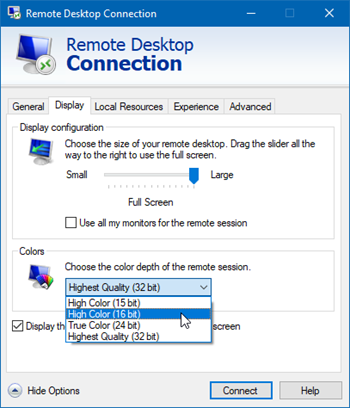
Reducing color depth affects all applications, even Windows itself, although most users won't notice a lot of difference unless they are working on graphics-intensive applications (creating graphic content, editing movies, etc.).
User Settings/Preferences (On-Screen Takeoff and Quick Bid)
By default, not all program settings/options (Tools > Options > General) are optimized to provide the best remote experience for end users.

The key options you may want to change for On-Screen Takeoff:
- Make sure "Turn on bid wizard" is not check - this function and remote/shared usage are incompatible.
- Make sure "Open Hot Links in separate View Window" is set to Main - pop-ups (such as the Annotations and View windows) don't always work reliably over remote connections.
- Make sure "Restrict Lateral Movement of linear objects" is unchecked - this makes it easier for your end users to move linear objects on the page.
- Make sure "Disable high resolution images" is unchecked - even if you are not using PDFs or color, this ups the display resolution for images to 8-bit. Converted PDFs will be at a higher quality also. Dialing-down your remote color bit depth (see first section) will have less of an affect on image quality if you start with higher quality plans.
- Make sure "Enable Intelligent Paste" is checked - this makes repeated copying and pasting tasks easier.
These options can be changed by end users, if they so choose.
Folder Settings (On-Screen Takeoff and Quick Bid)
In Tools > Options > Folders, you configure several folder locations the applications use (the screenshot is On-Screen Takeoff but Quick Bid is similar).
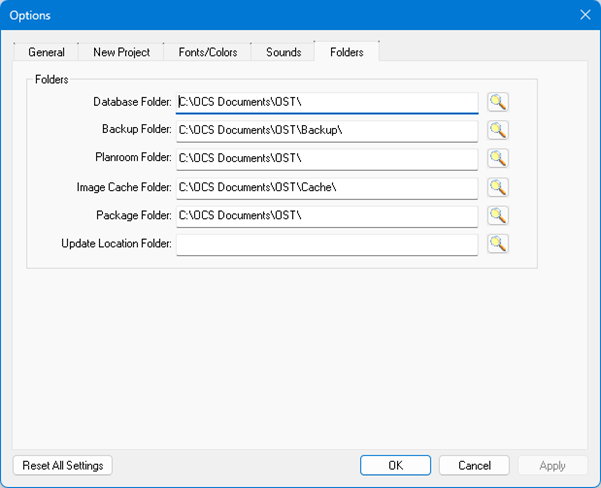
- Because end users will be using a SQL databases, the "Database Folder" and "Backup Folder" are not used (it is vital that your users do not use "local" databases - these are stored on their remote "C:\" drive, they will lose work eventually).
- Planroom Folder - must point to your Image File Server (see above) so that the image files downloaded from a planroom are stored in the correct location.
- The Image Cache Folder is used during print previewing, so it is fine the way it is.
- Package Folder is where the program will store any export files created by the end user. It is entirely at your discretion where you want that to happen. The users virtual desktop is a great locations - easy to find the exported files.
- Update Location Folder - no longer used.
Ensure that users have access (read-write-create) access to whichever folders you designate.
For Planroom Folder, keep the path as short as possible. On-Screen Takeoff cannot download planroom image files if the full path to the file, including the entire folder path exceeds 256 characters. Many planrooms create complex folder structures and can quickly hit that maximum character length. You may need to map your network image folder as a lettered drive in Windows.
Related Articles
