

In addition to downloading documents into a Zip file (DV - Downloading Documents from Document Viewer), from Document Viewer, you can send project Plans, Specifications, and other project documents to your favorite takeoff software or open the project directly in On-Screen Takeoff, or PlanSwift.
Opening a Platform Project in On-Screen Takeoff or PlanSwift
First, select the plans and documents you want to download in the Document Tree (if you don't select any, all documents are sent to the takeoff app).
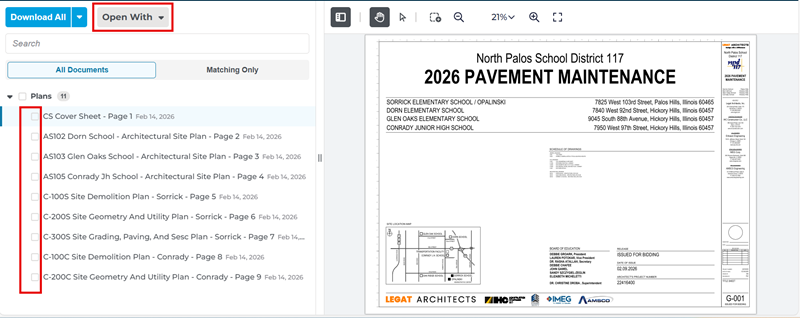
Next, click the “Open With” drop-down.
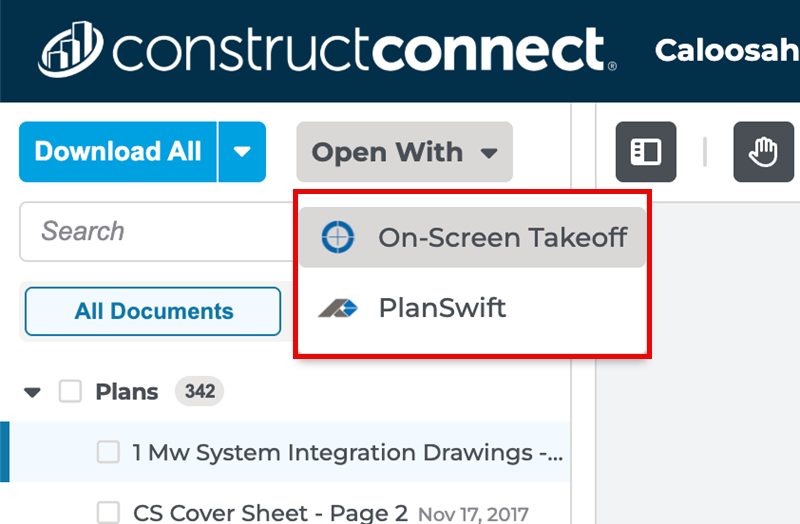
Select an option to continue.
- On-Screen Takeoff, or
- PlanSwift
Follow the instructions in the user guides for your takeoff product to install the Connect utility and download documents, see Related Articles.
When updated project documents are posted to this Project in the Platform, you must manually download and match them to existing Pages.
Related Articles
