

When you delete a project or a bid it is moved to the "Recycle Bin". As mentioned in the previous article you can restore projects and bids from the Recycle Bin.
To permanently remove projects and bids you either empty the Recycle Bin or select a bid or project for permanent deletion.
First expand the Recycle Bin by clicking the sideways facing arrow next to the Recycle Bin label (then you can pull up the divider to see more of the rows in the Recycle Bin).
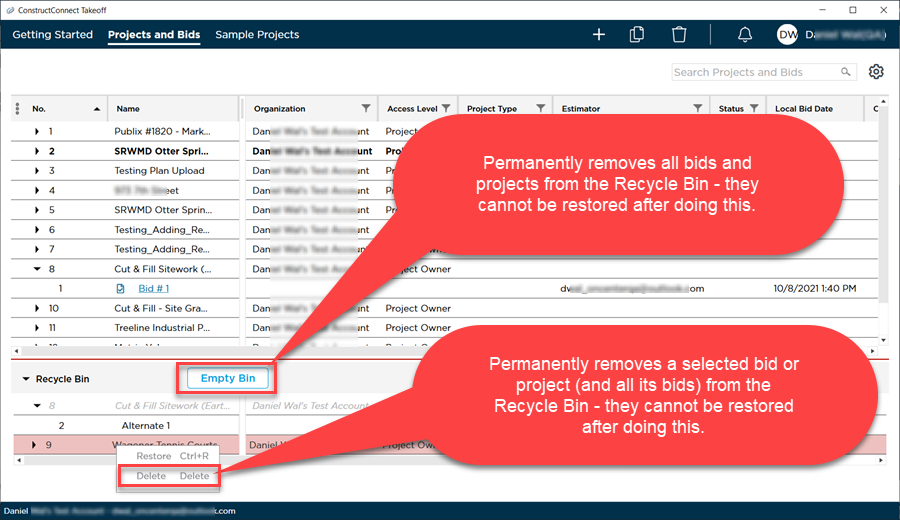
There are two ways for permanently deleting projects and bids.
Empty Recycle Bin
- Click the red "Empty Bin" button to delete everything in the Recycle Bin permanently.
- You will be prompted to confirm your action.
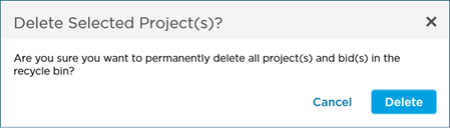
- Click Delete to continue and purge everything from the Recycle Bin or Cancel.
Selectively Delete a Project or a Bid
You can also select one or more projects or bids in the Recycle Bin to delete permanently.
Again you will be prompted to confirm...
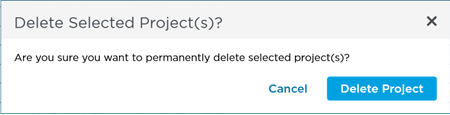
Delete select Project(s)
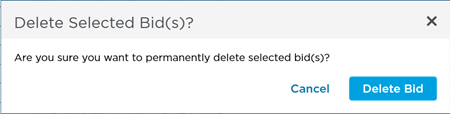
Delete selected Bid(s)
Click Delete to continue and purge the selected projects or bids from the Recycle Bin or Cancel.
OK, so enough about the Projects and Bids List let us get down to creating and using projects and bids.
 Restoring Projects and Bids from the Recycle Bin Restoring Projects and Bids from the Recycle Bin | Searching, Filtering, and Sorting the Projects and Bids List  |
Related Articles
