

ConstructConnect Takeoff includes numerous Result formulas for each Takeoff Item Type (Linear Area Count Attachment). If you cannot find one that suits your needs you can create a Custom Formula.
There are numerous "Variables" you can use in your formulas please see the next article for a list of all available variables you can use in Custom Formulas.
Remember depending on how you measure something (as a Linear Area or Count or all three...) you may need to create similar Custom Formulas to calculate the same Material for each Type of Takeoff Item.
Example - Calculating the Volume of a Pyramid Count Object
How you create a Custom Formula is dependent on the Type of Takeoff Item; and for Count and Attachments the Shape of the object often requires some adjustments to your formulas.
As an example we want to calculate the volume of a pyramid-shaped Count object. The dimensions of the pyramid's base are 8' by 6' and the height is 10'.
The mathematical formula to calculate a pyramid's volume is (W*D*H/3 (one third of the volume of the rectangle)). This is easy to accomplish using a Custom Formula.
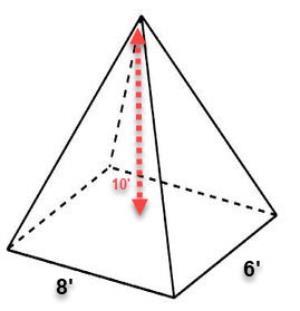
Our Takeoff Item is setup like this...
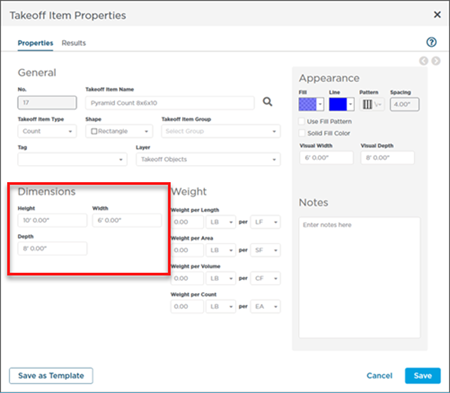
In the Takeoff Item's Results tab click the  button at the bottom of the Results list this opens up the Count Formulas window.
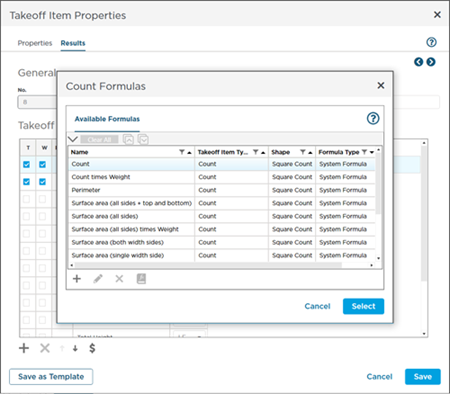
Click the button in the Count Formulas list to add a new Custom Formula using the Formula Editor (introduced in the previous articles).
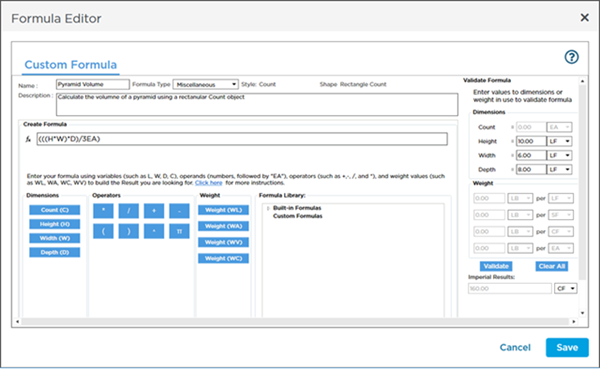
Our formula takes the Count's Height (H) Width (W) and Depth (D) and divides by 3. (Could not be simpler! But wait the Formula for calculating surface area below is a bit more complex).
Formula Errors
If the program identifies an error in your formula it lets you know....

In our example we included an unnecessary closing parenthesis at the end of our Formula. The program underlines our mistake so we can fix it.
Validation # 1
Before you save this Custom Formula use the Validation panel on the right - we enter 10' for length and 10' for height.
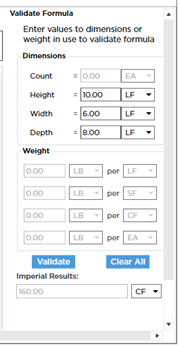
If we do the math:
- 10 (Height) x 6 (Width) x 8 (Depth) = 480
- Divide 480 by 3 and you get 160
- We are expecting CF (for Volume) so that is also correct
Click Save (you can save this to the Masters if you are adding from a Takeoff Item by clicking "Save to Library" in the Formula List).
Validation #2
Now return to the Takeoff Tab and draw a one object with this Takeoff Item.
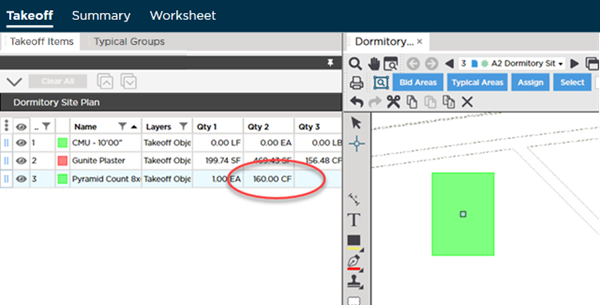
Notice Result # 2 (our Custom Formula) shows 160.00 CF - exactly what we were expecting.
Again if you wanted to account for weight that is easy enough to do review the previous article on Linear Custom Formulas.
Now setting up a Custom Formula to calculate the surface area of a pyramid is much more complex.
Complex Calculation - Surface Area of a Pyramid
From our Geometry classes we know that the formula for calculating the surface area of a pyramid requires calculating the surface area of the triangles that compose the "walls" of the pyramid and adding that to the surface area of the base of the pyramid.
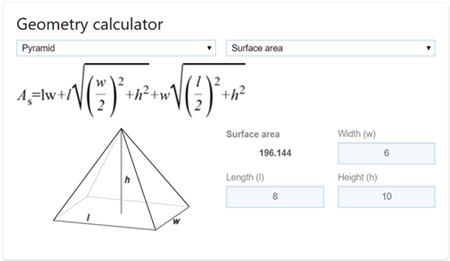
Mathematical Formula for the surface area of a pyramid compliments of Bingu2122 - notice the Result 196.144.
This may seem daunting but if you break it down a bit we can figure it out.
First step, the surface area of the base is just Length times Width, but we call Length "Depth" because "length" is related to drawing Linear takeoff.
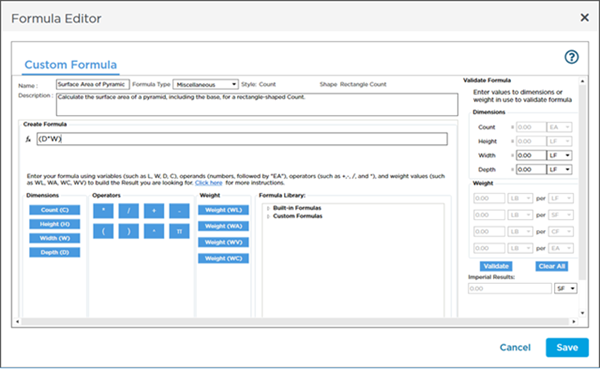
Then it is a matter of converting those Root symbols to fractional powers (the square root of 4 is the same as saying 4 raised to the power of 1/2). When raising to a power be sure to offset that calculation with parentheses and be double-sure that you offset addition and subtraction calculations.
The most confusing part is keeping track of the parentheses to control the order of calculations - but remember the program lets you know if you miss any closing parentheses.
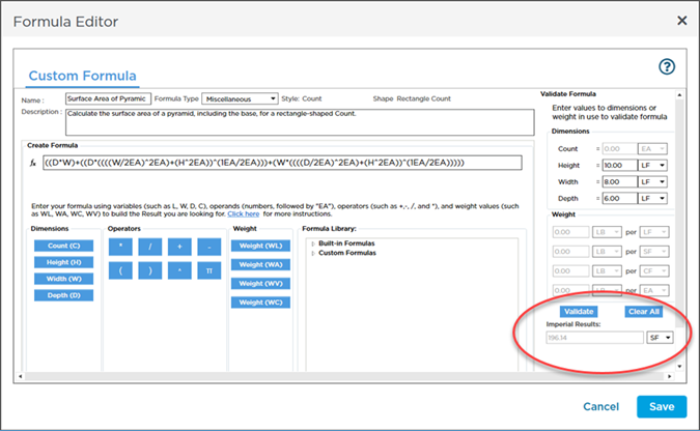
Notice our validation matches that online calculator.
Save this Custom Formula and the Takeoff Item and then review the Takeoff Tab.
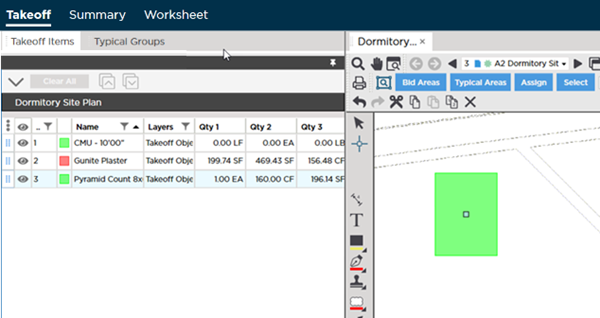
Notice our Result # 3 matches our online calculator's result.
Remember, depending on how you measure something (as a Linear, Area, or Count or all three...) you may need to create similar Custom Formulas to calculate the same Material for each Type of Takeoff Item.
 Custom Formula Example - Areas Custom Formula Example - Areas | Variables You Can Use Custom Formulas  |
Related Articles
