

There are many reasons why you may need to select objects in the Takeoff Window (objects include: takeoff, Typical Group Frames and Markers, Annotations, Punch Items, and File Attachments):
- Resize or re-position one or more objects (on the same Page)
- Copy (and paste) takeoff (to the same Page, to another Page in the same bid, or even to another bid or project)
- Rotate or spin takeoff
- Reassign takeoff from one Takeoff Item to a different Takeoff Item
- Assign takeoff to a Bid Area or Typical Area
- Delete takeoff, Typical Group Markers, or Annotations (Dimension Lines, Highlights, Textboxes, etc.)
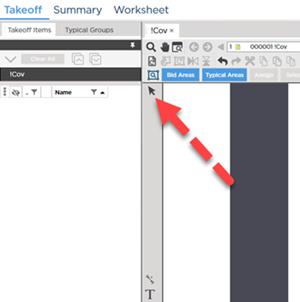
Selecting usually starts with the Select Tool located at the of the toolbar that separates the left-side dockbar from the Takeoff Window.
Please review the previous chapters for information on drawing takeoff and annotations using Bid or Typical Areas and creating Punch Items and File (Bid) Attachments.
At the end of this chapter you should be comfortable with the various methods you can use to select objects in the Takeoff Window resizing and adjusting takeoff objects and reassigning takeoff.
There are different ways to select objects and how you select objects (and what you select) affects what you can do. The next few articles cover the various ways you can select objects in the Takeoff Window.
Selecting non-like objects
If you select different types of objects such as takeoff objects and Annotations at the same time you are limited to what actions you can perform. For example, if you selected some takeoff and and Annotation, the option to "Reassign Takeoff" is disabled because you cannot perform that action on an Annotation.
 Hiding the Image Legend Hiding the Image Legend | Selecting Objects by Clicking on Them  |
Related Articles
