

Selecting a Single Object
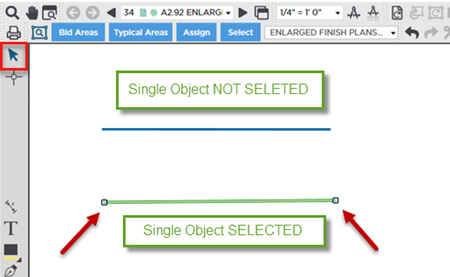
To select a single takeoff object (or a single piece of Annotation):
- Click the
 button on the Takeoff Tools toolbar
 - Then click directly on the object
If there are multiple objects layered on top of each other, it may be necessary to click more than once to select the correct object, or you can move the other objects out of the way.
When a single object is selected it displays the resize (or grab) handles along its perimeter.
Because takeoff can be stacked on top of other takeoff we recommend using Custom Layers and Takeoff Item Layers to show and hide takeoff. This way you can hide the takeoff you are not interested in editing for now making it easier to select the correct takeoff. See Related Articles for more information on Layers.
Selecting Multiple Objects
To select multiple objects but not all surrounding objects:
- Grab the tool and
- Hold down the <Shift> key
- Click on the objects to select/de-select
When you select multiple objects they are highlighted in yellow. You cannot resize multiple objects at the same time so their adjustment handles are not shown.
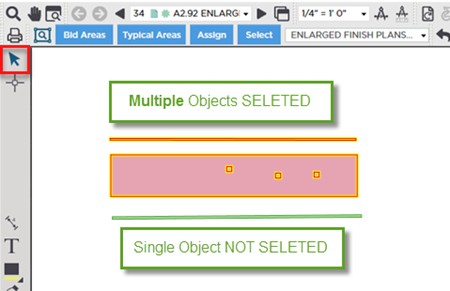
If you accidentally click on an object you do not want to select just click on it again. (Clicking on an object once selects it clicking a second time de-selects it.)
Selecting Takeoff that include Attachments
- If you select an object that has one or more Attachments on it you can select the parent object the Attachments or both depending on your needs. Roping (next article) is the easiest way to select multiple objects that are near each other.
- You cannot copy an Attachment unless you select (and copy) its Parent object at the same time (Attachments cannot be copied and pasted to other parents).
- If you select an object that has Attachments on it but do not select the Attachments when you copy and paste only the Parent object is copy and pasted.
- You can select an Attachment(s) without selecting the parent object if you want to move the Attachment(s) within the confines of the Parent takeoff object or delete the Attachment(s).
- If you delete an object that has Attachments on it the Parent object and all Attachments are deleted.
Although clicking on one or two objects to select them is fine, however if you need to select a lot of takeoff objects, takeoff and attachments, or area takeoff with backouts use Roping (next article).
 Selecting Takeoff Objects and Annotations Selecting Takeoff Objects and Annotations | Selecting Objects by Roping Them  |
Related Articles
