

Drawing Area Takeoff
Area takeoff objects measure construction objects you typically valuate by "square" - such as square yards/feet/inches or square meters/millimeters. Many times you also use Area takeoff to calculate volume - such as concrete slabs/walls insulation soil or asphalt. See Related Articles for details on setting up an Area Takeoff Item.
When you select an Area Takeoff Item from the Takeoff Items Pane the Area Takeoff Tools toolbar displays.
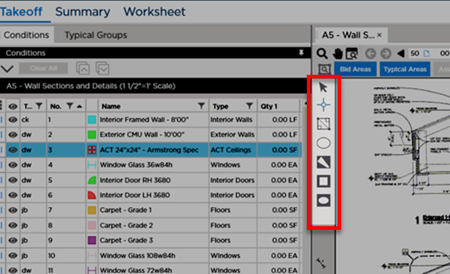
There are six Area-specific Takeoff Tools available to draw takeoff and backouts (subtractions from an Area takeoff object). The cursor changes shape to match the selected Takeoff tool.

| Button | Description | What it does/How it is used... |
|---|---|---|
 | Select | Always visible - allows you to select or grab objects in the Takeoff Window to edit or adjust them. |
 | Normal Mode | Allows you to draw a polygon - you click at each vertex (corner) of the object and double-click on the last point to 'close' the object. |
 | Rectangle | Allow you to draw a rectangular area by clicking two diagonal points. |
 | Elliptical | Allows you to draw an elliptical object based on two clicks - can be circle or oval. |
 | Polygon Backout | Allows you to draw a polygon subtraction on an existing Area takeoff object. Great for removing some of an area such as a cutout or inset. |
 | Rectangle Backout | Allows you to draw a rectangular subtraction on an existing Area takeoff object. Great for removing some of an area such as a cutout or inset. |
 | Elliptical Backout | Allows you to draw an elliptical subtraction on an existing Area takeoff object. Great for removing some of an area such as a cutout or inset. |
To begin drawing Area takeoff you need to choose the appropriate tool - we cover how to use each tool in the articles that follow.
Before drawing any takeoff you must set and verify Scale see Related Articles.
 Auto-Filling a (Closed) Linear Polygon with Area Takeoff Auto-Filling a (Closed) Linear Polygon with Area Takeoff | Drawing Polygon Area Takeoff (Complex Shapes)  |
Related Articles
