

When you draw linear segments by default they are drawn as "Straight" segments (unless you draw a Rounded or 3-Point Arc tools or shortcuts). But this is just their default state because you can set any segment (that doesn't have an attachment on it) as "Curved" and then bend it.
To bend a "straight" segment:
- Right-click on any Linear segment
- Click the option "Convert to Rounded Curved Segment" or "Convert to 3-Point Curve Segment"
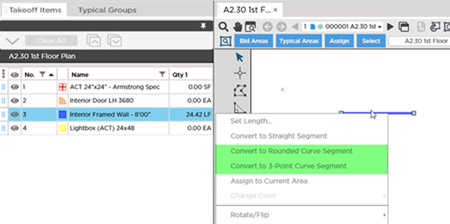
- Click on the resize/adjustment handles (the little boxes on each end of the segment and in the middle of the segment) to adjust the size and shape of the segment
Reminders
- A Rounded Curve Segment is a section of a circle - if you continued drawing the legs of the object they would complete a circle (maybe a very large circle but it would be a circle).
- A 3-Point Curve Segment on the other hand has endpoints that if extended out may never intersect - like an arch or the end of an ellipse/oval.
See Related Articles for details on using Rounded and 3-Point Curved Linear Segments.
If you have set a segment to "Curved" you can always change it back to "Straight" by right-clicking on it and selected "Convert to Straight Segment". When you do the segment is restored to its original straight shape.
Attachments cannot be placed on any curved segment. If you have set a segment to "curved" you need to break it into smaller "straight" segment if you want to place attachments on those segments.
Before drawing any takeoff you must set and verify Scale see Related Articles.
 Drawing Elliptical Linear Takeoff Drawing Elliptical Linear Takeoff | Manually Setting the Length of a Linear Takeoff (to Scale)  |
Related Articles
