

You can print the current Page, including the Drawing and all takeoff and annotations to a shareable PDF file.
Print/Save to PDF
To Print the current Page to a PDF file, on the Takeoff Tab,
- Click the Export button at the top of the Conditions list,
- Then click Print/Save as PDF
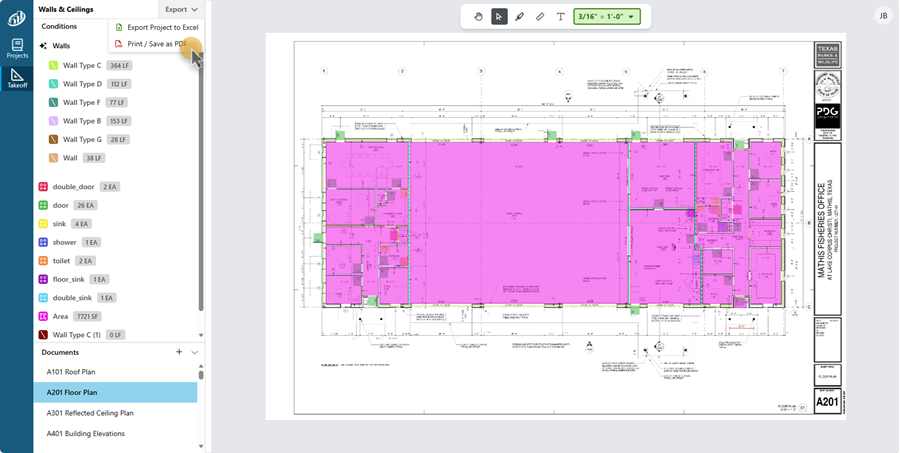
- If you are prompted with what to do with the PDF file, click “Save”
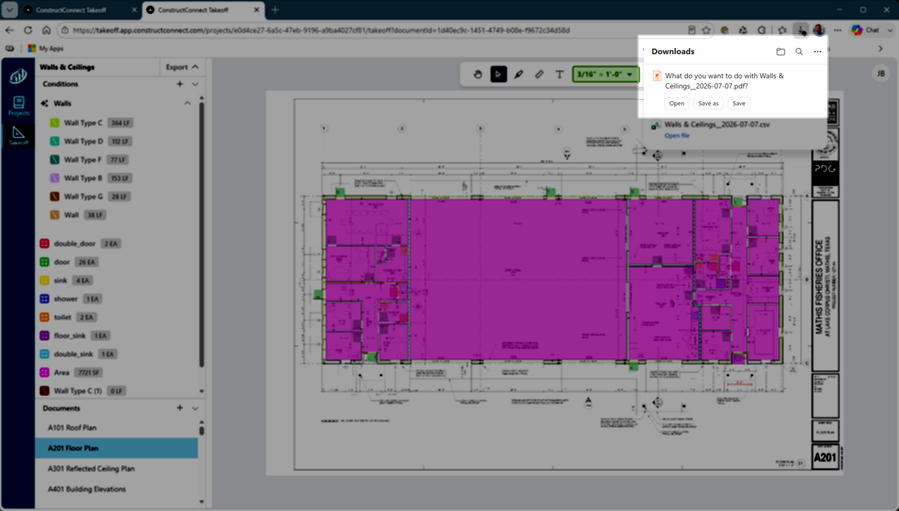
You’ll find the file in your Brower’s default Downloads folder (for Window’s users, that’s the “Downloads” folder in Windows Explorer).
The PDF file is named for your Project and today’s date, in our example, we exported the Walls & Ceilings Project on July 7, 2026.
Double-click the PDF file to view it.
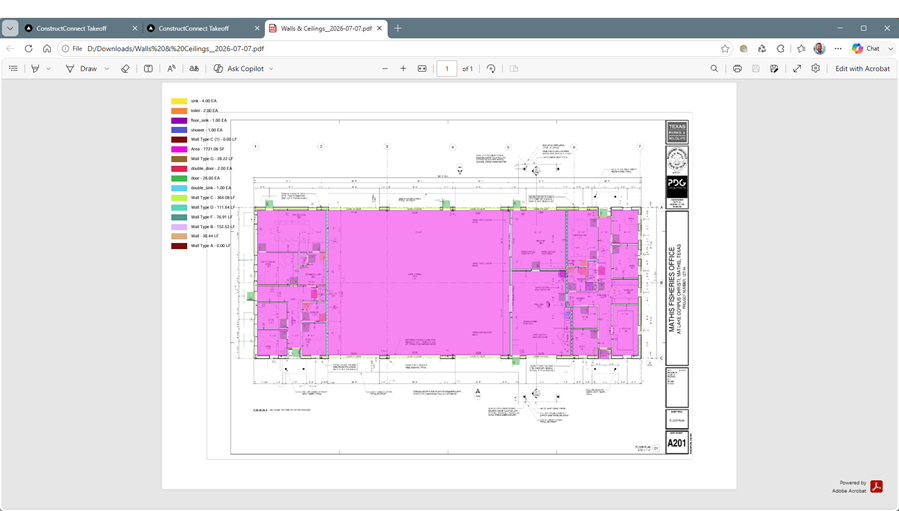
You can also send this file to anyone, they don’t need to be a ConstructConnect Takeoff user - it’s just a normal PDF.
That's it, you're ready to use all the features of ConstructConnect Takeoff, should have any other questions, please contact Support.
 Export to Excel Export to Excel |
Related Articles
