

After you’ve completed your takeoff, you probably want to do something with those results. In this article, we show you how to export your cumulative project totals to Excel (actually, a CSV file, but they open in Excel).
In the next article, we cover Printing the current Page including the Drawing and takeoff to a PDF.
Export to Excel
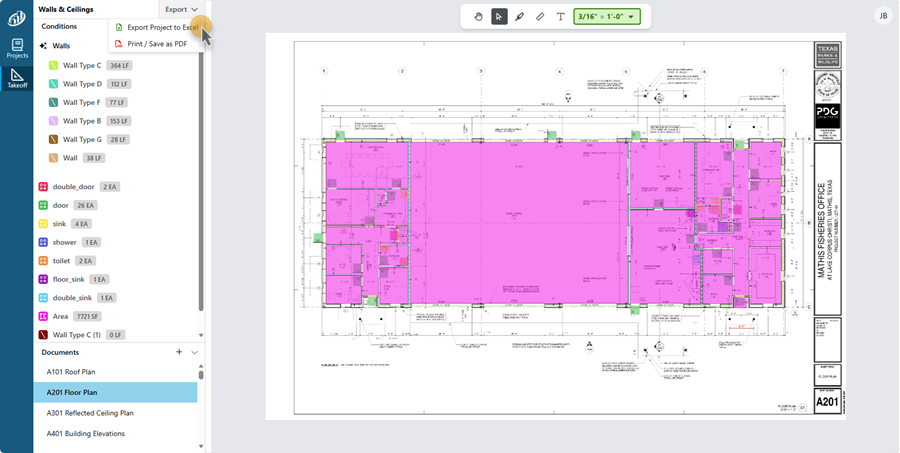
To export to Excel, on the Takeoff Tab,
- Click the Export button at the top of the Conditions list,
- Then click Export Project to Excel
- If you are prompted with what to do with the CSV file, click “Save”
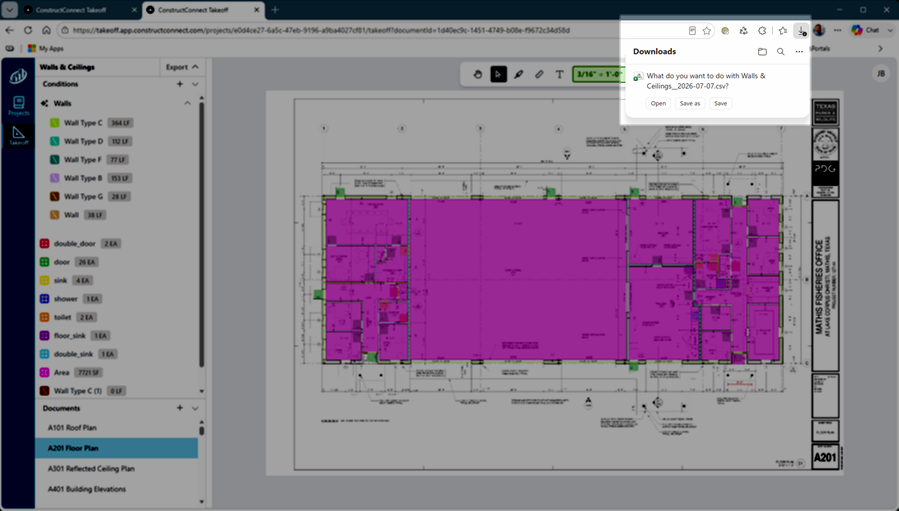
You’ll find the file in your Brower’s default Downloads folder (for Window’s users, that’s the “Downloads” folder in Windows Explorer).
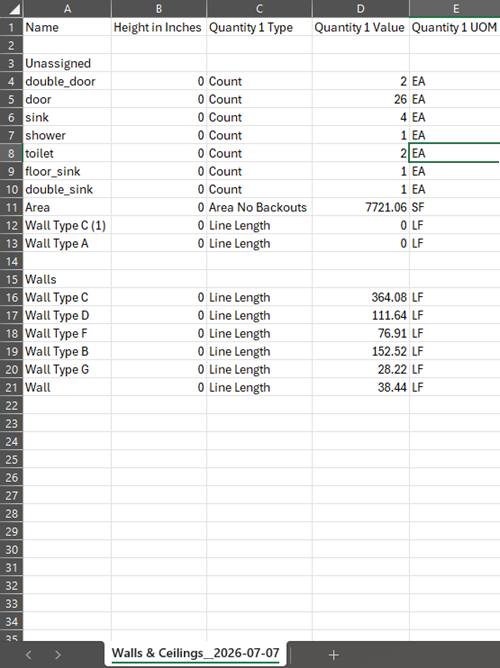
The CSV file is named for your Project and today’s date, in our example, we exported the Walls & Ceilings Project on July 7, 2026.
Double-click the CSV file to view it.
If you have Microsoft Excel or another spreadsheet application installed, CSV files will typically be opened in that app.
Next up, we cover printing the current Page.
 Annotations (Highlights, Dimension Lines, and Textboxes) Annotations (Highlights, Dimension Lines, and Textboxes) | Print to PDF  |
Related Articles
