

Annotations are markup objects such as highlights, dimensions lines, and text you add to your Pages that are not takeoff (not measuring building objects). Annotations are simply objects you place on your plans to highlight or showcase information. Each type of Annotation is covered below.
Once drawn, Annotations can be selected copied pasted moved etc. just like a piece of takeoff.
The Annotation tools are all located on the main toolbar:

Highlighter Tool
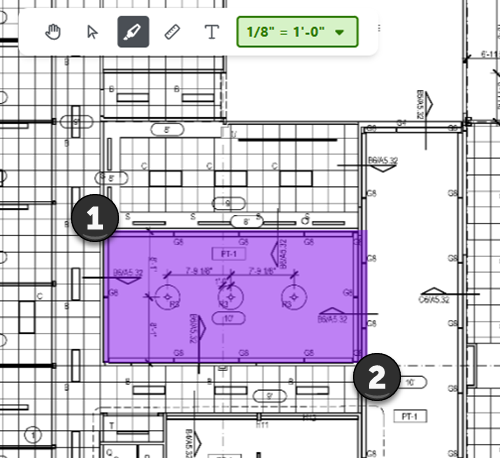
Use the highlighter tool to draw a colored box on your plans to highlight something of importance.
To draw a highlighter annotation,
- Select the Highlighter button
 ,
, - Click the upper-left or bottom-right corner where you want to anchor the highlight
- Then, click the opposite corner (diagonally)
- You can move/edit the object once it’s drawn
Dimension Line Tool
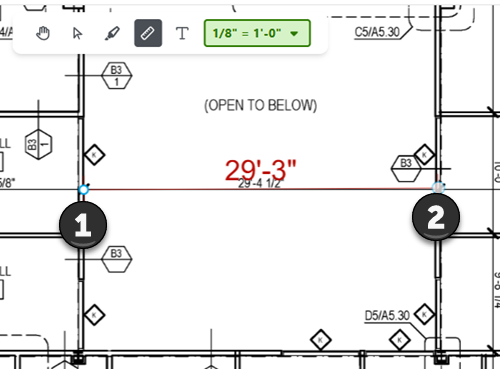
Use the Dimension tool to indicate a fixed length on your plans and to verify that your Page Scale is set accurately.
To draw a Dimension Line,
- Select the Dimension Line tool

- Click the first point of the line you want to draw
- Click the second point
- You can move/edit the object after drawing it
Textbox Tool
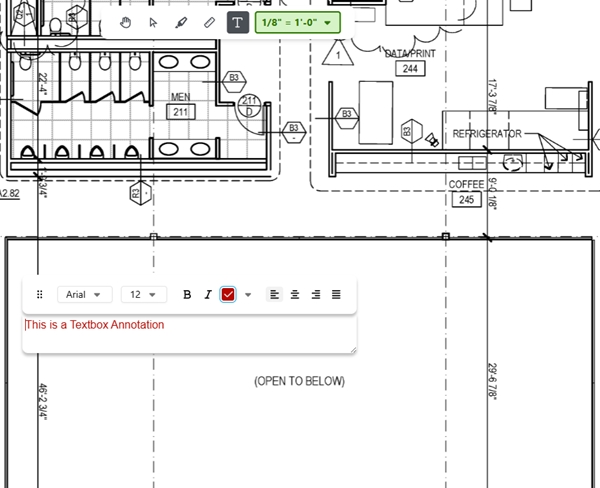
Use a Textbox when you want to ask a question about something on the Drawing or to make any other note for other users.
To draw a Textbox,
- Select the Textbox tool

- Click at the upper-left point where you want the Textbox anchored
The Text editor opens.
- Add whatever text and make whatever changes you want to formatting in the Text Editor
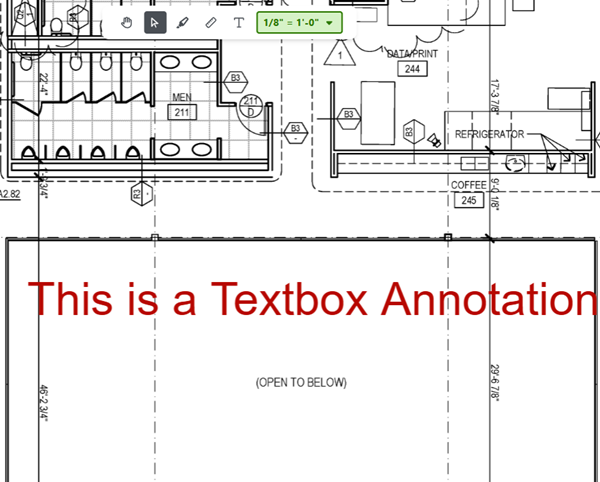
- Click away from the Text editor to save your Textbox
- You can move this Textbox anywhere on your drawing
- To edit the text/formatting, double-click on the Textbox to reopen the Text Editor
 Selecting and Editing Takeoff Selecting and Editing Takeoff | Export and Print  |
Related Articles
