

After you draw takeoff, you may need to edit it to: move it, delete it, resize it, etc. First, you need to Select it.
Selecting Takeoff
- Click on the Select tool (
 )
) - Click on the takeoff object you want to select
To select multiple objects:
- Hold down the <Shift> button and click each, or
- Draw a box around the objects using the Select tool, every object inside the box becomes selected
Selected objects so a hollow blue circle on them or on their corners/end points.
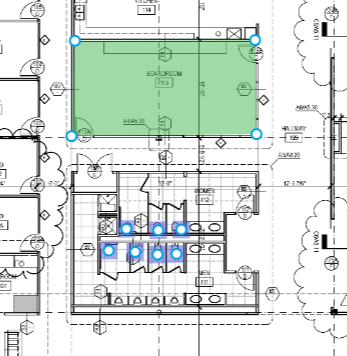
Editing Takeoff
Single Area Object
Right-click on a single selected object to open the context menu, the options available depend on the Style of Condition used to draw the object.
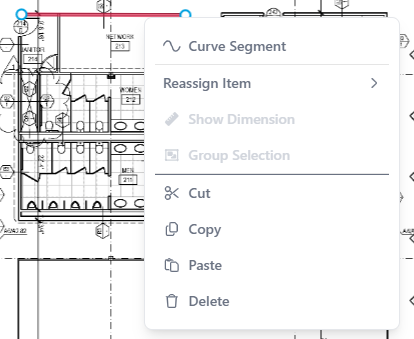
Linear takeoff object context menu
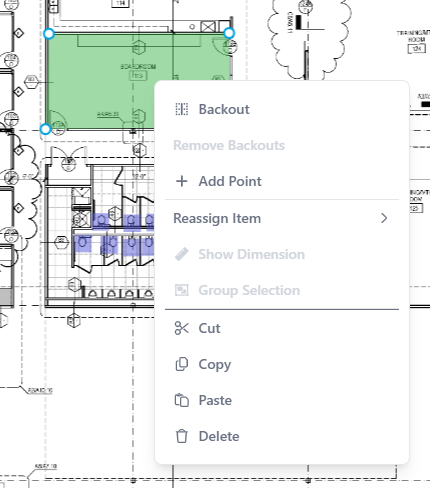
Area takeoff object context menu
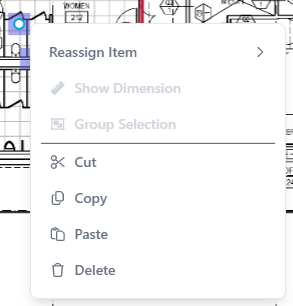
Count takeoff object context menu
| Option | Keyboard Shortcut* | Description/What it does... |
|---|---|---|
| Backout | When you right-click on an area takeoff object, you can remove some of it to account for deductions such as lightboxes, vents, inlays, etc. | |
| Remove Backouts | When you right-click on a previously drawn backout, you can delete it. | |
| Add Point | On linear and area takeoff objects, you can add a point to a segment to break it in two | |
| Reassign Item | You can reassign one or more objects to a different Condition of the same Style (linear to linear, area to area, count to count). This very useful when copying and pasting takeoff and you need to adjust height, thickness, etc. | |
| Cut | <Ctrl>+<X> | Copies the selected takeoff to the Windows Clipboard, then removes it from the Takeoff window, for pasting someplace else (also called “moving” an object). |
| Copy | <Ctrl>+<C> | Copies the selected takeoff to the Windows Clipboard, but leaves the original in place on the Takeoff window, for pasting someplace else. |
| Paste | <Ctrl>+<V> | Pastes whatever has been cut or copied previously - you can paste the cut/copied object(s) multiple times. |
| Delete/Remove | DEL/Delete |
| Keyboard Shortcut | Description/What it does |
|---|---|
| <Ctrl>+<Z> | Undoes some actions (cut, paste, delete) as long as you have not navigated to a different Page. |
| <Ctrl>+<Shift>+<Z> | Redoes an undone action |
* For keyboard shortcuts that show <Ctrl>, MAC users hold down the CMD button  .
.
Multiple Objects
You can use keyboard shortcuts above to edit multiple selected objects.
<NEED SCREENSHOT OF CONTEXT MENU, WHEN IT IS WORKING>
 Drawing Takeoff Drawing Takeoff | Annotations (Highlights, Dimension Lines, and Textboxes)  |
Related Articles
