
Effective June 5, 2026, Takeoff Boost is now the overarching brand name for ConstructConnect’s AI-Powered takeoff and project setup automation tools. What used to be called “Takeoff Boost” is now “Auto Takeoff”, part of the suite of AI-powered tools.
Takeoff Boost’s Auto Takeoff is ConstructConnect’s AI-Assisted Automated Takeoff Service that can help you get a jump start on your takeoff projects. In seconds, Auto Takeoff can return a Page full of walls, windows, areas, and counts in seconds so you can spend more time on the details and less time on repetitive takeoff tasks.
You must keep your On-Screen Takeoff up to date with the latest release to continue to use Auto Takeoff. See On-Screen Takeoff's Product Information and Downloads Page for the current release.
For customers who license On-Screen Takeoff by logging in with their e-mail address and password:
Customers on an Essential or Plus subscription can run Auto Takeoff on 5 Projects. Customer on a Core or Professional subscription can run Auto Takeoff an unlimited number of times.
For customers who license by activating a license key or server code:
Customers under an Advanced Maintenance subscription can run Auto Takeoff on 5 Projects. Customers on a Premium Maintenance subscription can run Auto Takeoff an unlimited number of times.
Customers on Standard Maintenance can request a Trial of Auto Takeoff.
What Is Auto Takeoff and How Does It Work?
Auto Takeoff is integrated into On-Screen Takeoff.
Auto Takeoff makes it easier for you to get a preliminary scope of work on a takeoff project. In seconds, Auto Takeoff analyzes a plan and then creates Conditions and takeoff to account for:
- Footprint area
- Footprint Area - area outline of a building, drawn along the outside edge of the exterior walls
- Net Area (less walls)
- Net Area - cumulative area drawn along the inside edge of exterior and interior walls
- Walls (linear)
- Lines - straight segments only
- Optionally, you can select a shape based on Wall Types tags designated on your floor plans and Auto Takeoff separates your takeoff into unique Conditions based on those tags (v.3.98.12.04 and newer)
- Existing walls (after 12/18/2025 service update)
- Ceilings (areas) (v.4.0 and newer)
- Auto Takeoff identified Gypsum Wallboard (GWB) and Acoustical Ceiling Tile (ACT) type ceilings based on patterns on the drawings.
- Optionally, if your Plans include Tags indicating Ceiling Types, a separate Condition for each Type is created
- All other Ceiling takeoff is associated with a Condition called “Ceiling”
- Painting (v.4.0.0.288 and newer)
- Takes off both sides of interior wall (Wall Surface Area)
- Counts
- Windows (v.3.98.18.03 and newer)
- Select the shape associated with Window Types on your plan and Auto Takeoff identifies them for you.
- Windows that are not tagged (v.4.0.0.288 and newer)
- Other counted objects such as Plumbing Fixtures, Doors, Elevators, etc.
- Windows (v.3.98.18.03 and newer)
- Volume
- Concrete spreader footings (May 6, 2026 Service Update)
These preliminary takeoff results allow an estimator to review the scope/scale of a project quickly to determine its suitability for more in-depth estimating.
You can use Takeoff Boost’s Auto Count feature to count anything that’s not included with Takeoff Boost such as electrical fixtures or anything else called out with a symbol on your plans - on up to 20 Pages at a time!
Requirements
Use of Takeoff Boost™ tools requires uploading of some or all of your project plans. Ensure you have the legal right to do so. Please see the following Master Service Agreement for more information.
Takeoff Boost’s tools use Artificial Intelligence to provide results. It is your responsibility to verify results to ensure accuracy.
To use Auto Takeoff, you'll need a few things:
- A takeoff license, see Licensing On-Screen Takeoff for more information
- See above note for feature available based on your subscription or maintenance level
- If you are using an older version of On-Screen Takeoff, you must activate a Takeoff Boost/Auto Takeoff subscription Authorization Code (this is separate from your takeoff license and begins with "BOOST+" instead of "OST+" or "OST@").
In addition to proper licensing, your Project/Bid must:
- Your project must not be set to a "Locked" Job Status (see Masters: Job Statuses for more information).
- Your Project cannot be open (locked) by another user (if you are using a shared (SQL) database).
- You must have permissions to add takeoff to the Project (if your company uses logins to open the database - see Securing Your Databases (using Access Levels...)).
- You must set (and verify) the Page's Scale before running Auto Takeoff. Incorrect scale will cause incorrect results. See Setting the Scale of a Plan for more information.
- Auto Takeoff supports floor plans and enlarged floorplans, it does not support Detail, Section, or Elevation plans, at this time.
For On-Screen Takeoff to connect to the Takeoff Boost's Auto Takeoff service:
- You must have an active, high-speed internet connection.
- Your Firewall must be configured to allow On-Screen Takeoff to connect to the service (see Configuring Your Firewall for details on configuring your connection).
It is critical that you set and verify Scale before running Auto Takeoff on a Page. Incorrect Scale will cause takeoff errors because Auto Takeoff relies on correct Page scale to identify objects on the Plan.
Why Would I Use Auto Takeoff?
Using Auto Takeoff's automated takeoff you can:
- Save up to 95% of your time by automating repetitive takeoff tasks
- Spend more of your time in detailed analysis of your project and takeoff results
- Estimate the scope of a project to see if you're interested in investing the time and effort necessary to work up a formal bid
- Generate a rough cost estimate using your historical Unit Costs and Auto Takeoff's results (along with your own manual takeoff)
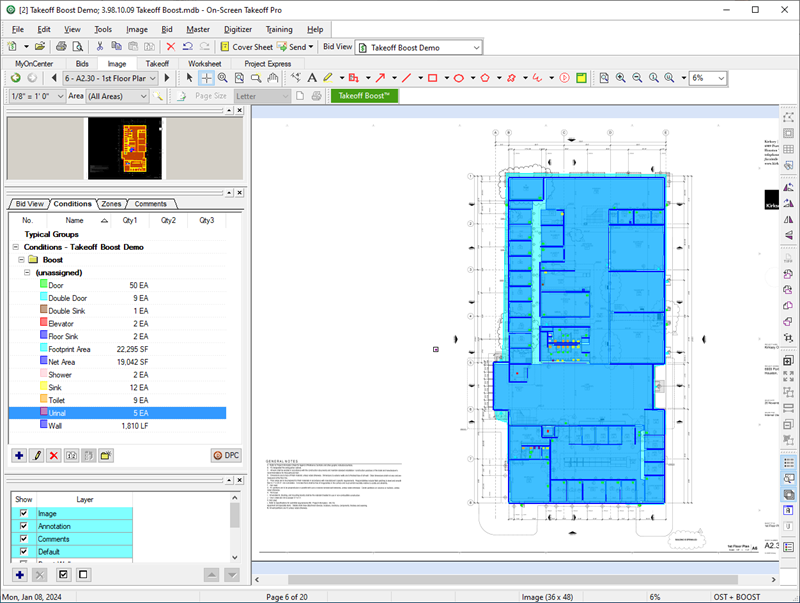
Example of what Auto Takeoff results can provide
From here, you could export the results to your favorite estimating program (such as Quick Bid) or simply use the Estimate Tab to develop a rough Unit Cost estimate.
What Auto Takeoff Isn’t
Let’s get this out of the way, no technology or automation can take the place of a seasoned, knowledgeable estimator. Auto Takeoff is not “complete, automated takeoff” that a user can use, with the press of a magic button, to estimate an entire project. Auto Takeoff gives you a great head start on your takeoff, and our Artificial Intelligence models are improving all the time, but as the estimator, you still play a critical role in bringing “human experience” to review and fine-tune the project.
Also, Auto Takeoff isn’t a "fit" for every contractor. You’ll need to judge if what Auto Takeoff can do for you brings value to your organization. Our recommendation: Give Auto Takeoff a try - it’s free to trial 5 uses to see it’s a fit for your takeoff needs.
Although Auto Takeoff delivers very accurate results and provides you a significant jump start on your Project, you must still:
- Review all takeoff Results
- Rename and fill-out the details of Conditions Auto Takeoff creates (for example, update the height and width of Wall Conditions)
- Add Conditions to separate takeoff as needed
- Reassign takeoff from the Conditions Auto Takeoff creates to appropriate Conditions
- Assign takeoff to Bid Areas, Typical Areas, etc.
- Fill-in missing takeoff manually
We cover running Auto Takeoff next and then analyzing/updating results in the articles that follow.
 Drawing Takeoff Overview Drawing Takeoff Overview | Running Auto Takeoff  |
Related Articles
