

Understanding the Company Details Page in Project Intelligence
The Company Details Page brings together the available information for a company listing in one place. Key company information stays visible at the top of the page, tabs make larger data sets easier to scan, and key metrics make important company information easier to review at a glance.
In this article you’ll learn how to:
- Use top level actions
- Use the tabs
- Review the Overview tab
- Review the Projects tab
- Review the Contacts tab
- Use the Notes tab
Use top level actions
The controls at the top of the Company Details Page let you quickly manage and move between company records.
- Watch: Select the star icon next to the company name to add or remove the company from your Watch List.
- Previous and next company navigation: Use the navigation controls at the top of the page to move between company records.
- Hide Company: Use the Hide button to hide the company from future search results. Hidden companies appear grayed out in results until you reverse the action.

Use the tabs
The Company Details Page is organized into tabs so you can move directly to the type of information you need.
- Overview: Review key company information, search tags, summary metrics, project portfolio information (such as participant activity by year), and recent projects.
- Projects: Review the company’s projects and switch between project stages (such as All, Planning, Bidding, and Post-Bid).
- Contacts: Review company contacts and change how contact information is organized and displayed, including switching between views, sorting contacts, and customizing visible columns.
- Notes: View, add, edit, and delete company notes for your team, such as follow-up reminders, relationship details, meeting notes, or other internal context you want coworkers to see.

Review the Overview tab
The Overview tab is designed to keep important company information easy to find while you work through the page.
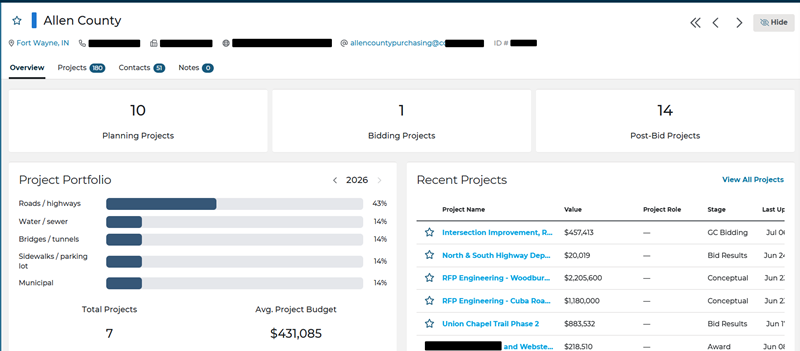
- The header bar keeps company information such as the company name, phone number, website, ConstructConnect Company ID, and location link visible at the top of the page for quick reference
- Search tags may be applied to a company record when one or more associated projects match the criteria of a saved project search. This gives you quick visibility into relevant tagged project activity for that company
- Summary metrics make important company data points easier to review at a glance, such as project counts associated with the company across planning, bidding, and post-bid stages.
- The Project Portfolio section shows the company’s project participation by year, so you can review how often the company appears on different building uses over time, such as retail, office, or road/highway projects. Use the arrows and date at the top of the section to move between years.
- The Recent Projects section shows the 10 most recent projects associated with the company, sorted by last updated date. Select View All Projects to see more.
Review the Projects tab
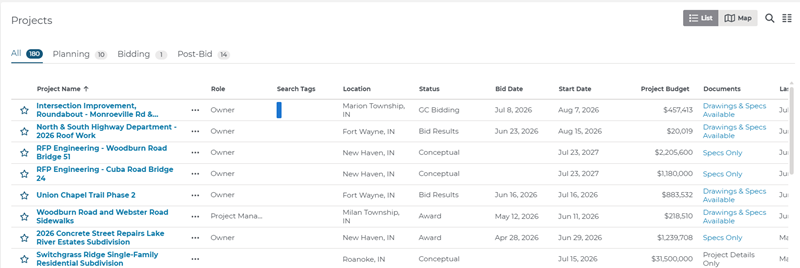
The Projects tab shows the projects where the company is involved.
- Use the tabs within the project list to switch between All, Planning, Bidding, and Post-Bid projects.
- The project list can include details such as Role, Location, Status, Bid Date, Value, Last Updated, Project Budget, and Documents.
- Use the three-dot menu on a project row to open additional project actions, such as Add to Watch List, Add to Bid Center, Download as CSV, Hide, or Share.
Review the Contacts tab
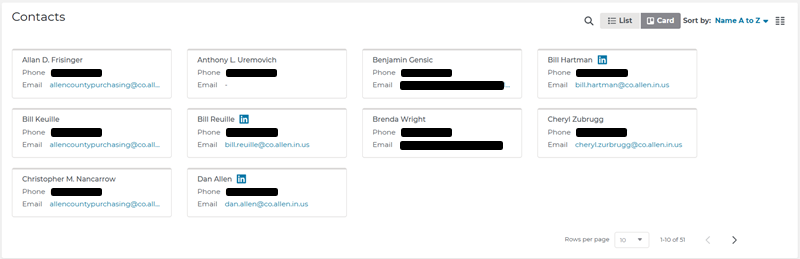
The Contacts tab lists contacts for the company, including phone numbers and email addresses.
You can also adjust how contact information is displayed:
- Switch between List view and Card view.
- Sort contacts from A to Z.
- Customize the visible columns.
Use the Notes tab
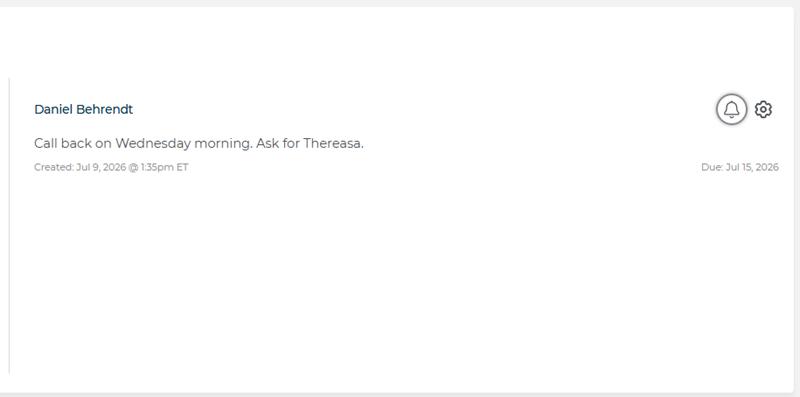
The Notes tab lets you view and add notes to the company listing for other members of your company. Use notes to capture internal details such as follow-up reminders, relationship history, meeting context, or next steps for your team.
Notes are not visible to the public.
To add a note:
- Enter the note text in the note box.
- Use the calendar to set a due date if needed.
- Select Send Reminder if you want a reminder of the note due date sent to your email address.
- Click Add Note.
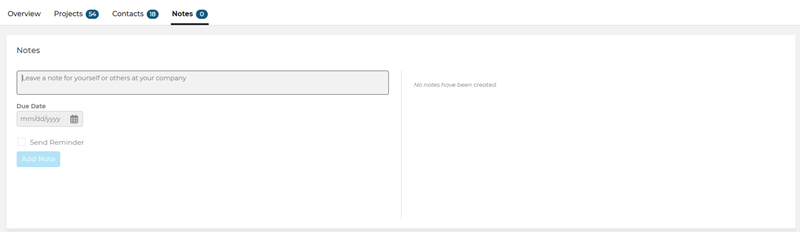
Result: The note appears in the Notes tab on the right-side of the screen. Use the gear icon on the note to edit or delete it.
 Understanding the Project Details in Project Intelligence (Paid Subscription) Adding Filters to Your Search in Project Intelligence
Related Articles
Understanding the Project Details Page in Project Intelligence (Paid Subscription)
Adding Filters to Your Search in Project Intelligence
Using Project and Company Filters Together in Project Intelligence
