

The Project Details Page is available to paid subscribers. Across four tabs—Overview, Contacts, Trades, and My Activity—it provides a summary of all available information about a project to help you make an informed decision. You can also share projects with team members or preferred vendors (CCPI Professional subscribers only). General Contractor subscribers can also click Add as Interested to join projects they are interested in bidding but have not yet been assigned. You can report a data issue or export the project to PDF.
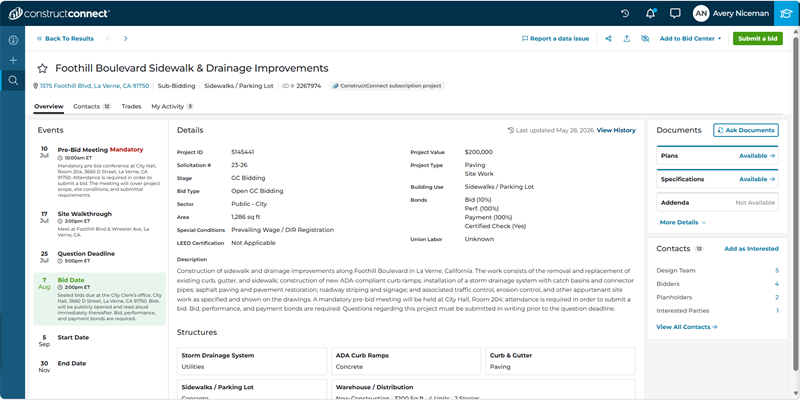
More details about each section of the Project Details Page is outlined below:
Project Header
The Project Header includes the Project Name, Watch List Indicator, and Project Status

More information about each of these fields is outlined below:
| Value | Description |
|---|---|
| Project Name | Full name of the project. |
| Location | The address of the project |
| Watch List Indicator | Indicates if a project is on your watch list. Click on the star to add or remove a project from your Watch List. |
| Add to Bid Center | Use the drop-down menu to select a bidding status for the project and add to Bid Center. |
NOTE: As a paid subscriber, once a Project Intelligence project is added to your Bid Center, you can assign the project to anyone in your company, and add an estimated value or an internal ID.
After reviewing the header, use the tabs to explore the project information in greater detail.
The Overview Tab
The Overview tab brings the most important project information together in one place, so you can quickly assess whether a project is a good fit. Review the project summary, key dates, details, location, available documents, and snapshots of associated contacts before exploring the other tabs.
The information on the Overview tab is separated into the following sections:
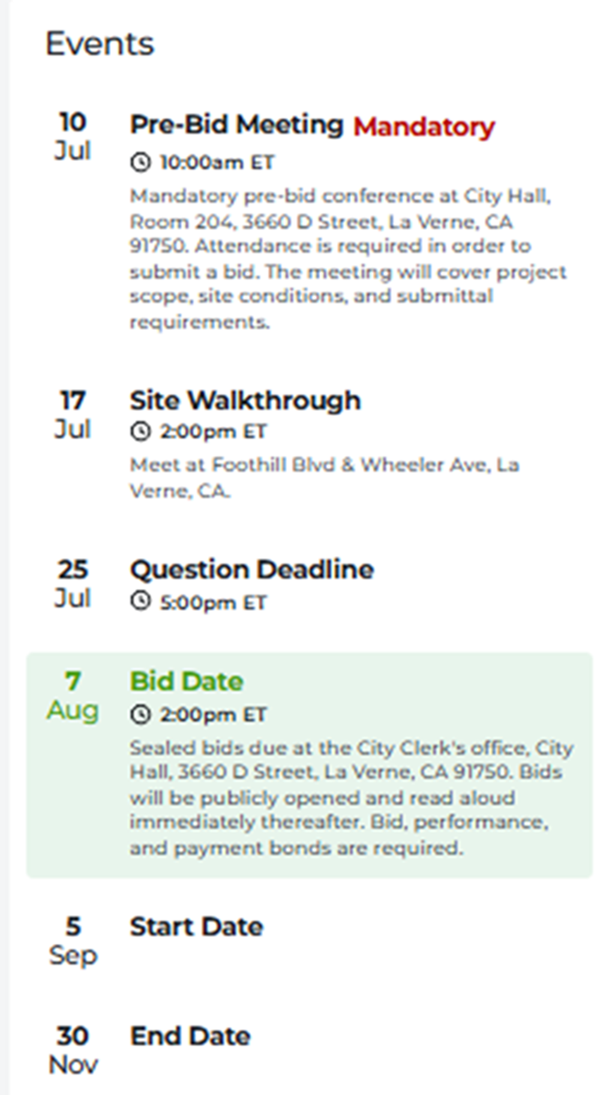
Events
Events listed here include any pertinent dates for a selected project, such as Bid Date or Project Start and End Date.
Details
The Details section provides the user with more information about a project, specifically:
| Project ID | The ConstructConnect ID for this project. |
| Solicitation # | The agency specific project number for a municipality or state or federal agency, such as the park bench replacement solicitation number 12345 for the Department of Parks. There can be multiple solicitation numbers, each representing separate agencies. |
| Stage | The stage of the project, such as GC Bidding or Post Bid. |
| Bid Type | The type of bid for the project, such as Pre-Qual/Invited GC or Bidding as Prime. |
| Sector | The area of work for the project, such as Private. |
| Area | Total square-footage of the project. |
| Special Conditions | Additional project-specific requirements (i.e. Prevailing Wage, DIR Registration). |
| LEED Certification | The project’s status under LEED, nationally recognized program for sustainable building design, construction, and operation. |
| Description | A text summary of the project and scope. |
| Max Value | The total estimated value of the project. |
| Project Type | The type of project work, such as New Construction. |
| Building Use | The end use of the project, such as Water / Sewer. |
| Bonds | The percentage of financial amounts for bonding. |
| Union Labor | Indicates whether union labor is required for the project, such as Required or Not Required. |
Structures
The Structures section summarizes the projects’ physical characteristics such as square-footage, number of stories, and floors below grade.

Documents
This section provides a high-level summary of the Documents associated with a project (i.e., plans, specifications, addenda), who provided the documents, and any additional notes.
When a project contains documents that are available to view or download, it will say Available next to the document type in question. When the document type in question is not available, the text will read Not Available.
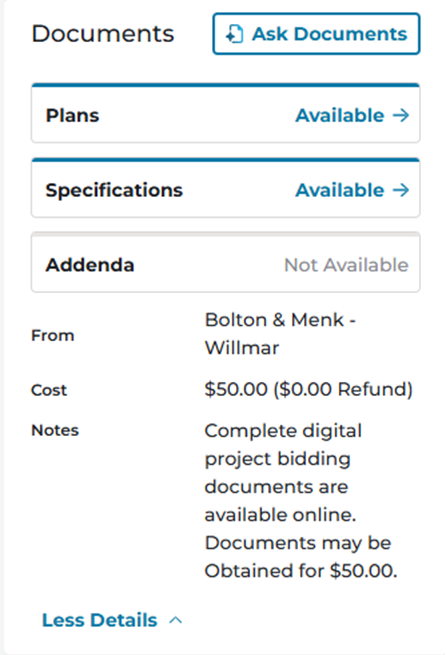
NOTE: When the Document status for a project is Project Details Only, you will instead see details on how to acquire the plan documents under the Details section for the project.
To access the documents for a project, click Available in the Documents section or click on any of the document count numbers in the section. The document viewer will open in a separate window. See New Document Viewer Overview for more information.
Contacts
From the Overview tab, the Contacts section provides a quick snapshot of the types of people and companies associated with the project. A number next to each role type shows how many contacts in that category are associated with the project.
Use it to assess the available contacts at a glance, then open the Contacts tab, or click the View All Contacts button, to view the full table.
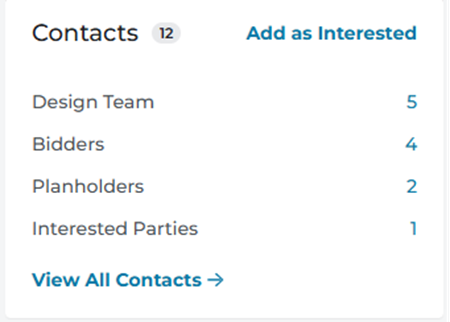
The Add as Interested option is also available in this section, which is covered in more detail below.
The Contacts Tab
The Contacts tab opens the full contacts table for the project, including the Contact Name, Role, Company Name, Location, and available Phone, Fax and Email details. Horizontal tabs at the top let you view All contacts regardless of role or select a category such as Design Team, Bidders, or Planholders.
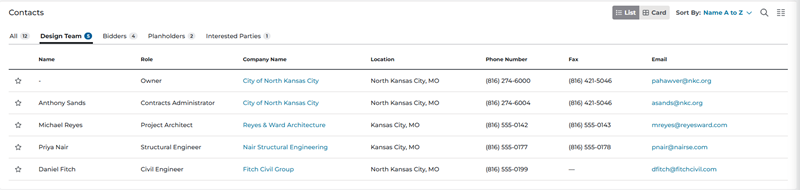
You can also:
-
Use the Quick Search menu to locate contacts quickly.
-
Watch a Company that you see in Contacts (see below).
-
Sort by Name, Email, or Bid Value.
If you find a company that you’d like to follow, you can add it to your company Watch List.
To add the company to your Watch List, click on the star icon which will turn yellow when the company has been added to your list. Also, you’ll know when any of your favorite companies are already attached to a project by checking out the star in their Contact row or card.
The Trades Tab
The Trades tab lists the trades associated with the project. Click the tabs at the top of the section to switch between viewing All Trades and the trades that align with your selections on the Only My Trades tab. For more information on navigating the Trades tab, see Working with Trades and Coverage in Bid Management.
The number next to All or Only My Trades represents the number of trades for that category.
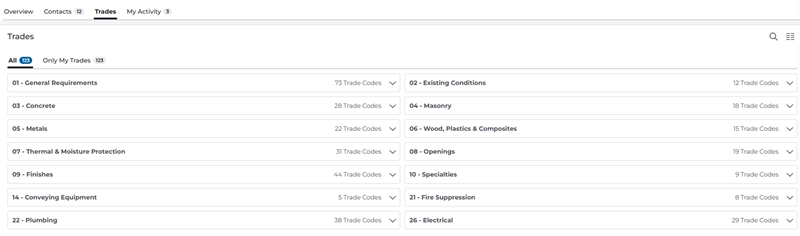
The line for each Division displays the Division Number and the count of Trade Codes for that Division participating in the project.
To see all of the trades for a Division associated with the project, click anywhere on the line for the Division. To expand all Divisions, click Expand All at the top of the section. To locate a specific Division or Trade Code, enter the code for either the Division or Trade in the Quick Search box at the top of the section and press Enter.
The My Activity Tab
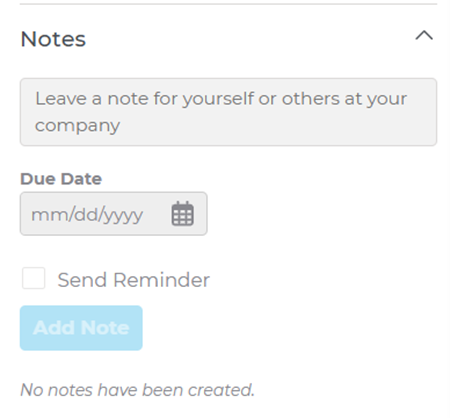
The My Activity tab brings together Bid Center details—such as the team member assigned to the project, estimated value, and internal ID—and project notes in one place. Use this information to manage internal project ownership, planning, and follow-up.
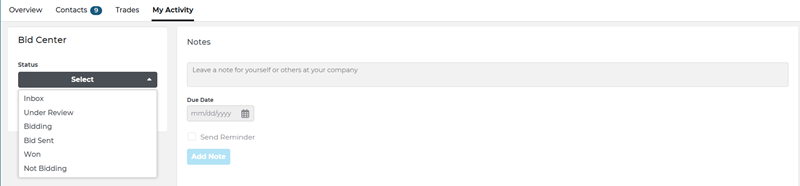
Notes
Notes for the projects added by you or another member of your company. The number of notes is shown next to the section name.
To create a note, enter the note in the box. Click and select a due date. If required, select Send Reminder. This sends a reminder of the note to your email address on the note due date.
Click Add Note to complete the task.
Sharing, Downloading, or Hiding Project Information
At the top of the page, a series of icons allows you to report a data issue, share, export, or hide the project.

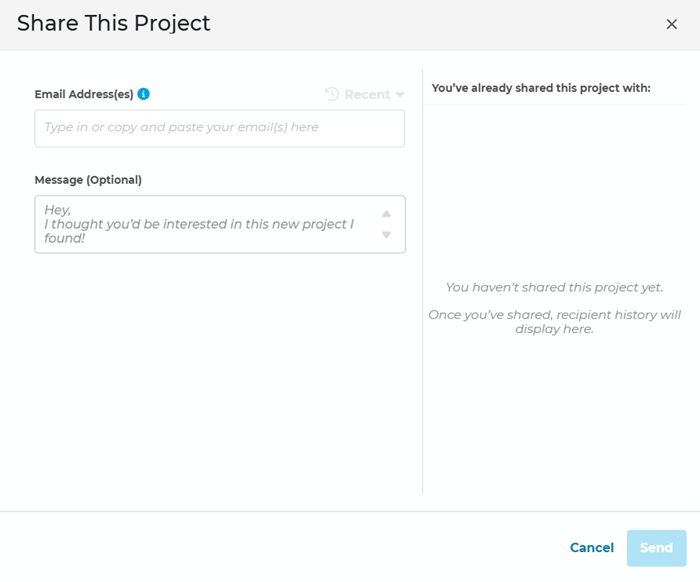
To share a project:
-
Click Share (the “three circles” icon)
-
Enter the recipient’s email address.
-
Add an optional message.
-
Click Send.
Other available actions include:
-
Report a data issue.
-
Export to PDF (using the “box with arrow” icon)
-
Hide the project (using the “eye with a slash mark” icon)
How To Add Yourself/Your Company as ‘Interested’
Both trade subcontractors and general contractors can now add themselves to a project from the Project Details Page if they don’t see themselves listed as one of the potential bidders. General contractors will see an Add as Bidder button (shown below), whereas trade contractors will see an Add as Interested button (shown below). Once added, the general contractor or trade contractor can check the Contacts tab to verify if they are listed as one of the project contacts, as well as add that project to their Bid Center so that they can track its advance through the bid pipeline. To get started using this functionality, see the following section for more details.
Adding a Bidder to a Project
General Contractors who subscribe to Project Intelligence can add themselves to any subscription project by clicking on the Add as Bidder button at the top of the Project Details Page

After clicking on the button, a new window will open, revealing a form with almost all the needed information prefilled except for First and Last Name and Phone Number. Add your name and phone number as above, then click Submit.
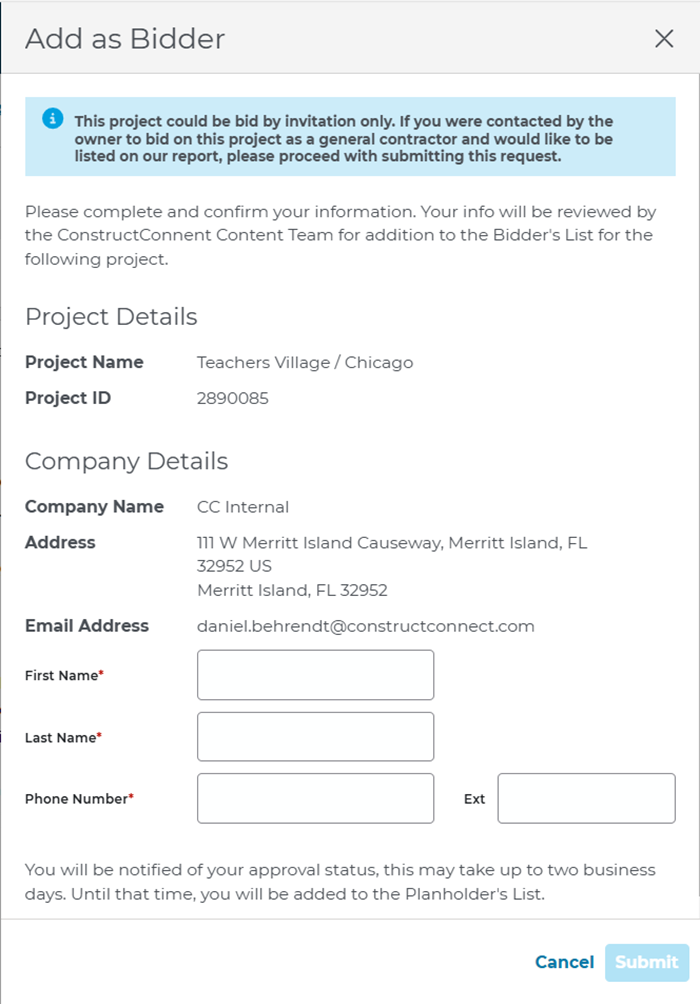
After clicking submit, you’ll get an email confirming your request has been received. You will also appear as a Planholder for the project in the list of Contacts associated with the project.
Within two business days, you’ll be notified of your approval status. When approved, you’ll now appear in the Bidders list for the project.
Add as an Interested Party to a Subscription Project
Trade contractors with a Project Intelligence subscription can also add themselves as an interested party of any project by clicking on the Add as Interested button in the Contacts section of the Overview tab.
Once you click on the Add as Interested button, you will be immediately added to the Contacts table under the Interested Parties tab for the project.
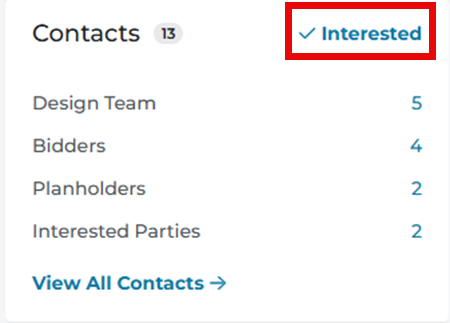
Once you have been successfully added to the Interested Parties tab, the Add as Interested text will change to say ‘Interested’ with a check mark beside it:
To remove yourself from the Interested Parties tab, simply click the Interested text again, and it will go back to reading Add as Interested.
Submitting a Bid
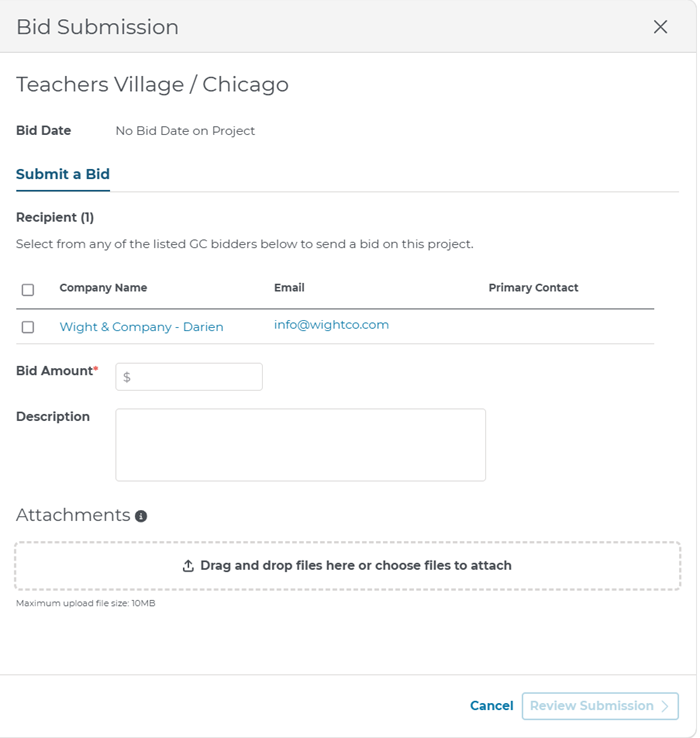
Once approved as a bidder for a project, you can submit your bid directly from the Project Details Page. Click Submit a Bid in the upper-right corner of the page.

Clicking the button will open a fly-out window allowing you to check a box next to the name of the company or contact who you would like to receive your bid.
You can then fill in other open text fields with your bid amount and a description box for any additional details. There is also an area to include any attachments that you’d like the recipient to review.
Once you’ve filled out the necessary field, hit the Review Submission button to double-check your entry before hitting submit.
Related Articles
Working with Your Search Results in Project Intelligence | Community
Downloading Project Details Page as Excel File in Project Intelligence | Community
