

Proximity Search in Project Intelligence
Proximity search helps you find more relevant results by telling Project Intelligence that two terms should appear close together in a document.
Use it when a standard keyword search is too broad and you need more precise results for a product, brand, competitor, or specification phrase.
This is especially useful when you are refining an existing search strategy or recreating search logic in a more precise way. It helps preserve the intent of your search while improving relevance.
Quick Answer
Proximity search improves search precision by requiring terms to appear near each other instead of anywhere in the same document.
In this article, you’ll find:
- What is Proximity Search?
- When should you use Proximity Search?
- Where do you enter a Proximity Search?
- How does Proximity syntax work?
- Combining Proximity Search with other operators
- What are the main syntax rules?
- Proximity Search examples
- Still need help?
What is Proximity Search?
Proximity search tells Project Intelligence that two words or phrases should appear near each other in the same document.
This helps reduce unrelated matches and makes it easier to surface results where the terms are more likely to be connected in a meaningful way.
For example, a broad search for temporary and fencing may return documents where both terms appear, but not close enough to be meaningfully related. Using "temporary fencing"~5 helps narrow the results to documents where those terms appear within five words of each other.
When should you use Proximity Search?
Use proximity search when:
- You want to track specific specification language such as “basis of design” or “acceptable manufacturers”
- You need to connect a product category, brand, or competitor name to a related product term
- A broad keyword is returning too many false positives
- You want more targeted results without rebuilding the entire search
Where do you enter a Proximity Search
You can enter or update search criteria from the Search page in Project Intelligence.
To enter search criteria:
- Open the Search page
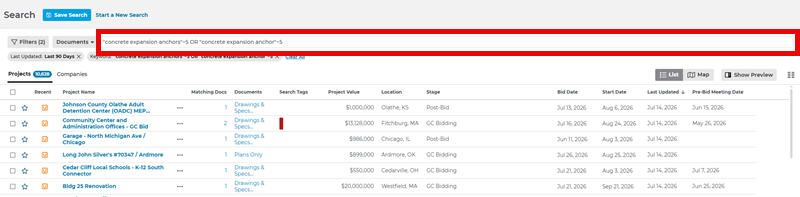
- Enter the proximity search terms in the keyword search bar at the top of the page
- Make sure Documents is selected in Search Within drop-down menu next to the search bar
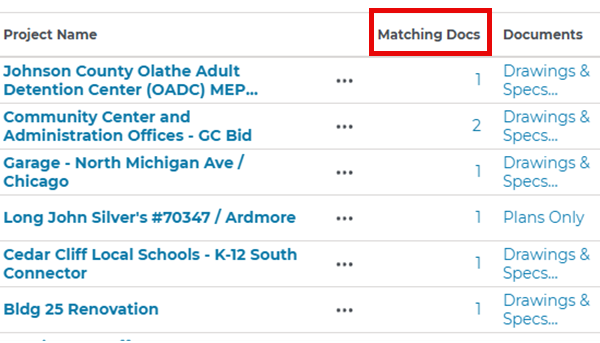
- Click directly on the number under the Matching Documents column
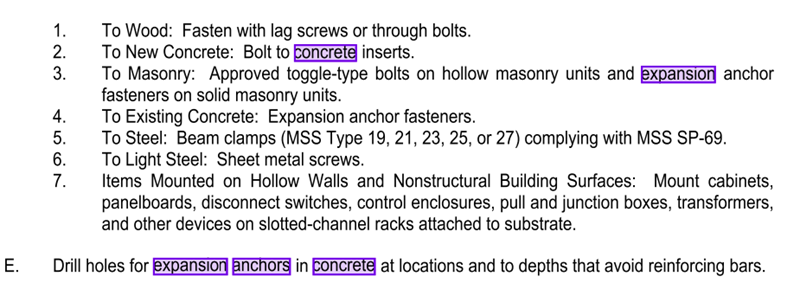
- Review the documents with matching terms highlighted in purple
Keyword Search Bar:
Matching Documents Column:
Highlighted Terms:
Hit the Save Search button if you would like all Proximity Search criteria to become a permanent part of a new, or existing, saved search.
For more information on how to view results, and interpret highlighted terms, directly through the Document Viewer, please read Keyword Highlighting in Document Viewer.
How does Proximity syntax work?
Use the syntax patterns below to build or review a proximity search.
"term1 term2"~N or "term1 term2 term3"~N
Use ~N when you want two or more quoted terms to appear within a certain number of words of each other in the document. For example, "temporary fencing"~5 looks for two terms that appear close together, while "concrete expansion anchors"~8 shows that proximity search can also work with a three-word phrase.
Examples:
"temporary fencing"~5
“concrete expansion anchors”~8
keyword1 NOT keyword2
Use NOT to exclude unwanted contexts or terms from your results.
Example:
fence NOT railing
Combining Proximity Search with other operators
You can combine proximity search with other operators to make a search more precise.
Example:
"temporary fencing"~5 AND "screening material"
What are the main syntax rules?
Keep these rules in mind when building or reviewing a proximity search:
- Put quotation marks around an exact multi-word phrase
- Use "term1 term2"~N when the relationship between terms matters
- Use NOT to remove unwanted contexts or false positives
- Use parentheses to group related terms in more advanced searches
- Enter AND, OR, and NOT in uppercase
- Start simple, then refine if your results are too broad
Proximity Search examples
Use these examples as models when reviewing or refining a search:
- "temporary fencing"~5
Helps find documents where two terms appear close together, even if they are not directly adjacent. - "concrete expansion anchors"~8
Shows how proximity search can also work with a three-word phrase when you want related terms to appear in close context. - fence NOT railing
Helps exclude documents that contain an unwanted related term. - "temporary fencing"~5 AND "screening material"
Combines proximity search with another operator to narrow results more precisely. - fence AND rail
Returns documents that contain both terms, though not necessarily on the same page. - fence OR railing
Returns documents that contain either term, which makes the search broader than AND.
Still need help?
If you are refining a search, start by identifying the terms that must appear together and the terms you want excluded. Then share that logic with your Customer Success Manager so they can help you fine-tune the search for your products, competitors, and target opportunities.
 Working with Saved Project Searches in Project Intelligence ConstructConnect Analytics Overview in Project Intelligence
Related Articles
Keyword Highlighting in Document Viewer
Using Search Operators in Project Intelligence
