

Question
Can I perform takeoff on a Google Earth™ image?
Answer
Yes!
Google Earth images can be used within On-Screen Takeoff, PlanSwift, and ConstructConnect Takeoff (Classic or web) for excavating, landscaping/site planning, and many other pre-construction methods.
These instructions are for the desktop version of Google Earth, not the online version. For in depth information on using Google Earth, please contact Google's technical support directly.
Using a Google Earth Image in On-Screen Takeoff, PlanSwift, or ConstructConnect Takeoff (Classic or web)
To use Google Earth images with our takeoff apps, you need to download a scaled image from Google.
Follow these steps:
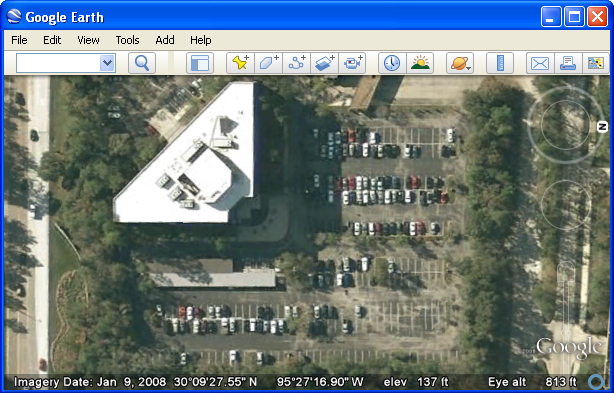
- In Google Earth, start by zooming into the area you wish to perform takeoff on (the larger the image the better, so zoom in as tight as possible)
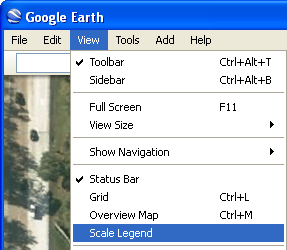
- Click View > Scale Legend to turn on the scale
The scale will show in the lower left hand corner of the image
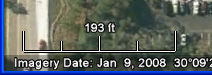
We recommend that you draw a Dimension line on the Google image, just in case Google legend is off slightly.
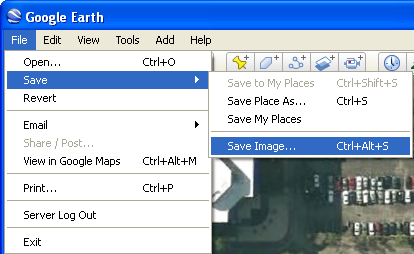
- Click File > Save > Save Image... to save the image in JPG format to a specific location on your computer or network
- Next, follow the instructions for your takeoff app to add an image to your project:
- After you add the Page to your Job/Project, you must Calculate and Verify the Scale:
After Calculating and Verifying Scale, you are ready to perform takeoff.
