

Each Pane contains a list of information laid out in a grid.
The Filter control explained below works the same on other screens in ConstructConnect Takeoff - almost anywhere information is shown in a grid you can Sort Filter and Group it.
Each column header contains a Filter control activated by clicking the Filter button  .
.
In our example below we are going to filter the Takeoff Items Pane to show only Takeoff Items with a Takeoff Item Group of "Floor".
(If "Group" is not showing in your Takeoff Items Pane just click the Column Selector  and select "Group" to add that column to the grid.)
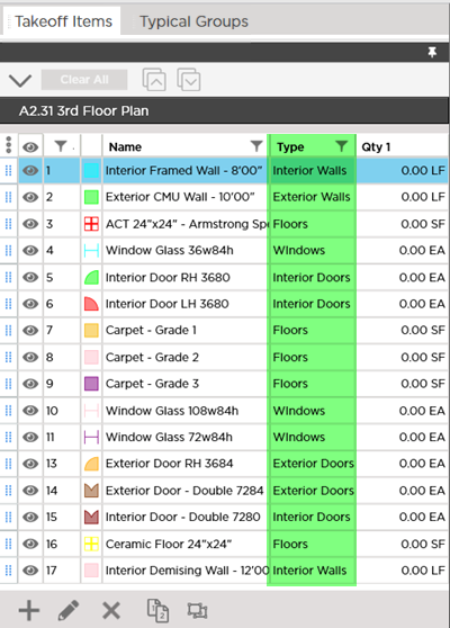
We highlighted the "Group" column it does not show this way in the program.
Applying a Filter
Click the Filter button in the Type column header and hover over "Filter by >" - a sub-menu opens showing all available Takeoff Item Groups shown in the grid.
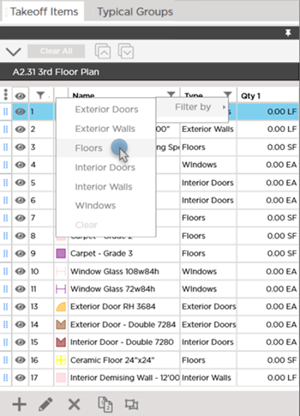
Select "Floors"...
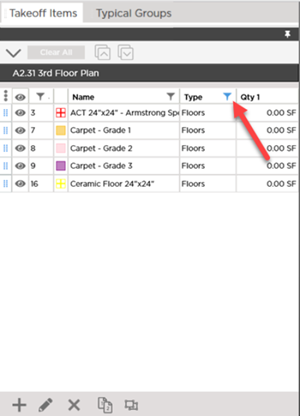
The Takeoff Items Pane now displays only those Takeoff Items with a Takeoff Item Group of "Floors".
Notice when any column if filtered the filter control is blue  .
.
Clearing or Changing a Filter
To remove a Filter click the button and hover over "Filter by >".
The list shows with a check mark in front of the selection by which the grid is filtered.
To remove the filter click on that check mark or just click "Clear" at the bottom of the list.
To change the filter to a different selection in the same column place a check mark in front of the other selection (the first selection is removed automatically).
Applying Multiple Filters
You can compound filters. Let us say that my name is Daniel Wallpaper and my coworker Jason Benchmark and I are working on a bid together. He has created some Takeoff Items and so have I - we have used the "Tag" field to identify our own Takeoff Items using our initials. As I am working I only want to see Takeoff Items that I created (Tag is my initials) in this bid with a Takeoff Item Group of "Floor".
Continuing with our list above filtered by Takeoff Item Group ("Floor") we add the Column "Tag" to the grid.
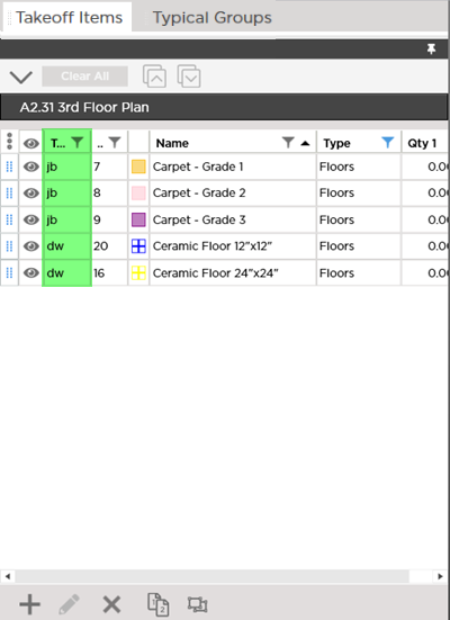
Again we highlighted the "Tag" column it does not show this way in the program.
Now click the Filter button in the Tag column header and hover over "Filter by >" - a sub-menu opens showing all available Tags for the Takeoff Items currently shown in the grid. There may be other Tags used for Takeoff Items but those Takeoff Items are not of Takeoff Item Group "Floor" so they are filtered out of the grid already and their Tags don't display in the filter control.
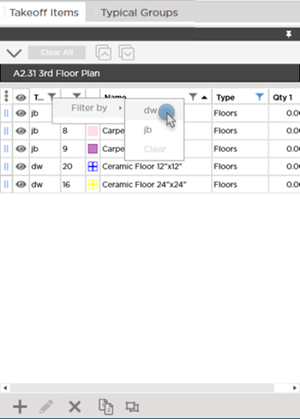
Select "dw"...
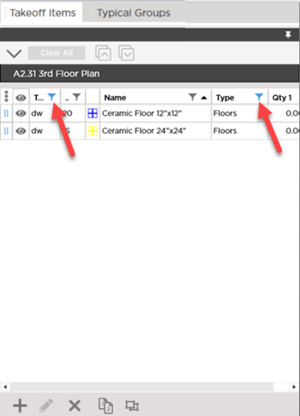
Notice both the Tag and Group column headers show the blue Filter button indicating that there is some filter applied to the grid for both Columns.
Again to remove any filters just open the filter control and click the filter already applied again or click "Clear".
 Sorting within a Panel Sorting within a Panel | Grouping within a Panel  |
Related Articles
