

To draw several segments that share endpoints (such as a irregularly shaped room) you can use the Continuous Mode Linear Takeoff tool ( .
.
To draw connected segments
- Select the button
- Click on the first point - this creates an "anchor" or starting point for your first segment
- Click on the end point for the first segment you want to draw (which is the starting point for the next segment)
- Click on the end of the second segment you want to draw
- Repeat until you come to the end point of the last segment
- Double-click to end the takeoff
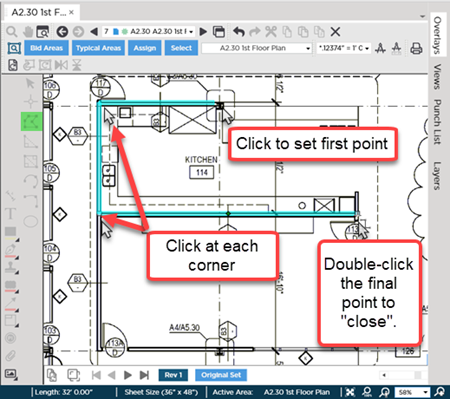
Once you "close" (complete or end) this set of takeoff objects each segment is saved as a separate piece of takeoff. You can select each segment move it reassign it (to a different Linear Takeoff Item) or even delete it without affecting any of the other segments. Selecting and editing takeoff is discussed in Related articles
Before drawing any takeoff you must set and verify Scale see Related Articles.
 Drawing Single Linear Takeoff Segments Using Normal Mode Drawing Single Linear Takeoff Segments Using Normal Mode | Drawing Arcs as You Draw Continuous Mode Linear Takeoff  |
Related Articles
