

You use Conditions to measure objects on your Drawings. A Condition is an unique building object you want to measure. You create a Condition once and then use it throughout your Project to measure the same objects.
If your Subscription includes Takeoff BOOST™, let it do much of this work for you: Get Real Results in ConstructConnect Takeoff with Auto Takeoff in Less than 2 Minutes.
When to Create a Condition?
You create a new Condition for each unique object you want to measure. Each of these would be a separate Condition:
- 10’ Interior Wall
- 8’ Interior Wall
- separate Conditions for each change in Height
- possibly multiple Conditions for each Height, depending on the type and finish - for example, a Painter may create a separate Condition for each finish, coverage rate, rolling vs. spraying, etc.
- Carpeting
- ACT
- Gypsum Ceiling
- possibly a separate Condition for brand or design or finish - anything that makes objects unique
- Column
- a separate Condition for each Height so that the application can correctly calculate square footage or volume
- 30x80 Door
- 24x80 Door
- 30x60 Window
- (a separate Condition for each size of door or window)
First, you’ll create a Condition, covered below, and in the next article, we cover using a Condition to draw takeoff.
Condition Styles
There are three Styles of Conditions you can choose from:
- Linear - anything measured with a line (even a curved line) with results such as foot, yard, meter. Measurement such as walls, gutters, pipes, and wiring are examples of Linears.
- Area - measure objects such as slabs, ceiling tiles, flooring, roofs, and facades that require a measurement for total square footage (or square meters, etc.).
- Count - measure takeoff objects best quantified as an each, such as a footing, column, or fixture.
Which Style to Use
You select the Style based on how the objects appear on your drawings/plans (how you draw the takeoff), not necessarily the Results you want. For example, for Walls, you’d measure them on the plans linearly so you’d use a Linear Condition. That doesn't mean that the application cannot provide you area or volume results when you use a Linear, though. If you tell the program the Height and Depth/Thickness and select the appropriate Results, you'll get all the measurements you need.
Create a New Condition
- Click the
 button in the Conditions list on the left side of the app.
The Condition Properties dialog box opens.
- Select the Style of Condition you want to create (Linear, Area, Count).
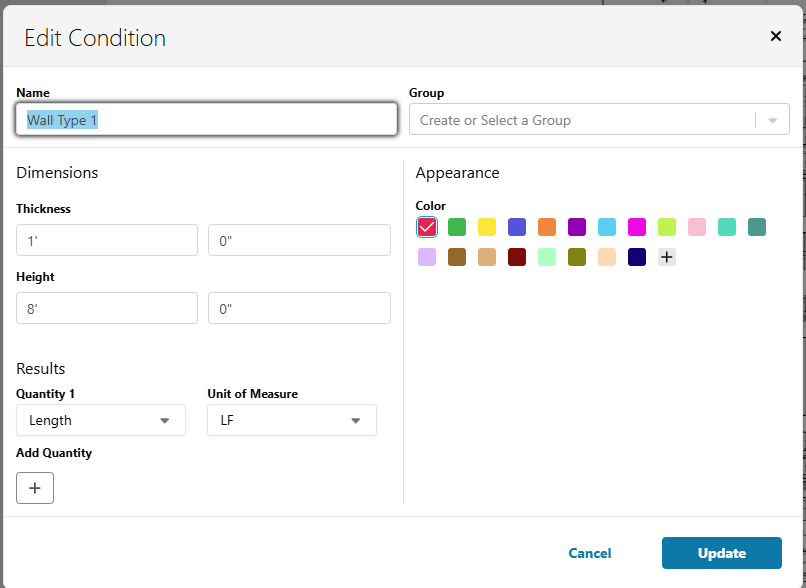
Condition Properties
Fill in the details, the fields are slightly different for each Style, but may include:
| Field | Description |
|---|---|
| Name | Give a descriptive Name to your Condition including anything that makes it unique (Height, Type, Tag, etc.) |
| Group | This is used for organizing your Conditions, you can Group by Division, Condition “Type” (like Interior Walls, Concrete, Ceilings, etc.), or anything you like. |
| Dimensions | Allows the application to calculate addition Results, for example, if you give a Linear Condition “Height”, the program can calculate the square footage (one or both sides) of a Wall. If you also give it “Thickness”, it can calculate volume. |
| Appearance | Sets he color of the takeoff you draw with this Condition. If you change this after drawing takeoff, all takeoff objects update to the new color immediately. |
| Display Size | For Counts, you can set how big the Count takeoff object appears on the Drawing. This is helpful when you are taking off something rather small and are zoomed out. |
| Results | You can add up to 3 results (for a Wall, maybe you want to know total length and probably surface area). |
After you save your Condition, you’ll see it in the Conditions List:
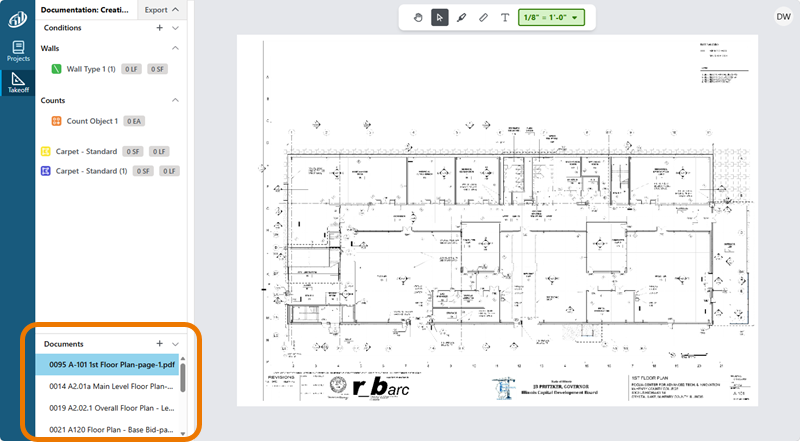
Managing Conditions
Duplicating a Condition
You can Duplicate an existing Condition in the Conditions List if it is similar to the Condition you need.
- Select the Condition you want to duplicate
- Right-click and select Duplicate on the context-menu
- Update the new Condition with whatever makes it unique (Name, Height, Thickness, Results, etc.)
Deleting Conditions
You can delete a Condition you don’t need and won’t use for drawing takeoff.
- Select the Condition you want to duplicate
- Right-click and select Delete on the context-menu
Deleting a Condition (or Conditions) is not 'undoable' and deleting a Condition deletes every piece of takeoff drawn with the Condition, on every Page in the current Project.
You are prompted to confirm the action.
Next up, we’ll use the Condition(s) you created to measure your drawing (perform takeoff).
 Set, Calculate, and Verify Page Scale Set, Calculate, and Verify Page Scale | Drawing Takeoff  |
Related Articles
