
The Takeoff Items Pane is where all your Takeoff Items are created and displayed along with their Results. The Takeoff Items Pane and the Layers Pane (covered in just a few articles) are two of of the most widely used Panes. Often times users undock both of these Panes so they can keep them both open without blocking any of the Takeoff Window (where you view your plans and takeoff) see Related Articles for details on using multiple monitors efficiently.
What is a Takeoff Item?
Before we continue we should probably explain what we mean by "Takeoff Item". A Takeoff Item defines a certain object on your plans that you want to measure. For example building objects may be measured linearly such walls (in our example "Wall Type A - 8' or 10') they may be fixtures or other counted objects such as toilets or footings by square foot (or square meter for the metric folks) such as carpeting concrete and ceiling tiles or things that 'attach' to other things such as ceiling lights or doors. We cover creating Takeoff Items in great detail in the Related Articles - we dedicate an entire next chapter to "Creating Takeoff Item" because if you do not get it right you won't be able to create useable takeoff results.
If you've used On-Screen Takeoff or Oasis Takeoff before Takeoff Items were known as "Conditions".
For now we want to cover how to use the Takeoff Items Pane.
Please review the Related Articles for information on sort filtering and grouping Panes.
Takeoff Items Panel Controls
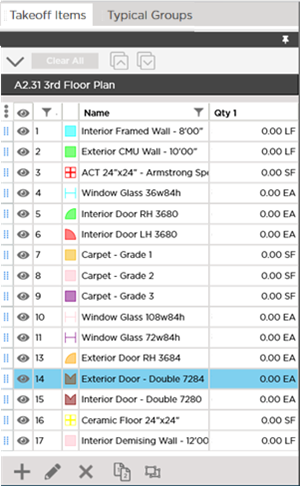
- Use the column select
 to show optional columns such as Tag Height or Group.
 - The move control (
 ) allows you to drag and drop a Takeoff Item to a different group when you have applied Grouping to the Pane (for example if you have the list grouped by Layer you could change a Takeoff Item's Layer by dragging it and dropping it onto another group).
 - The Show-Hide indicator
 next to each Takeoff Item Number allows you to show/hide the takeoff associated with that specific Takeoff Item (for all Pages in this Bid). When a Takeoff Item's takeoff is being hidden the indicator shows a line through it
  . The column header acts as a Show-All/Hide-All toggle.
 - The current Page name (the Page being displayed in the active Takeoff Window if you have opened multiple Takeoff Windows) displays toward the top of the Takeoff Item Pane just above the list of Takeoff Items.
 Takeoff Window Context Menus Takeoff Window Context Menus | The Takeoff Items Pane Toolbar  |
Related Articles
