

Sharing Saved Searches in Project Intelligence
- Before you begin
- Share a saved search
- Review or remove access
- Manage a shared search
- Use a shared search
- Manage your preferences
- Create your own search from a saved search
- Shared search limitations
Admins can share saved searches with users in their organization. Shared searches give users a common view of project and company data, while still allowing each user to manage their own search preferences.
Before you begin
-
You must be an admin to share a saved search
-
Make sure the search you want to share is already saved
-
Keep in mind that changes to a shared search’s criteria affect the results for everyone who has access
Share a saved search
-
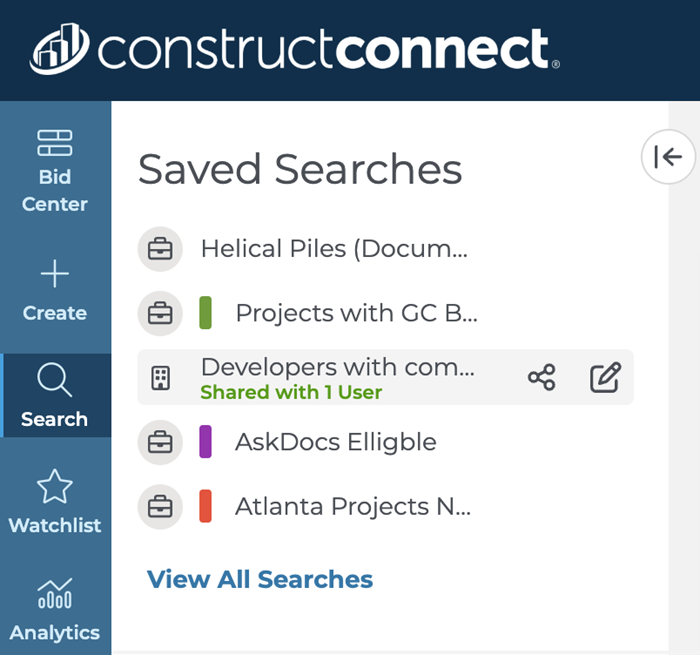
In the Saved Searches panel on the left, find the saved search you want to share
-
Click the Share icon to the right of the search name
-
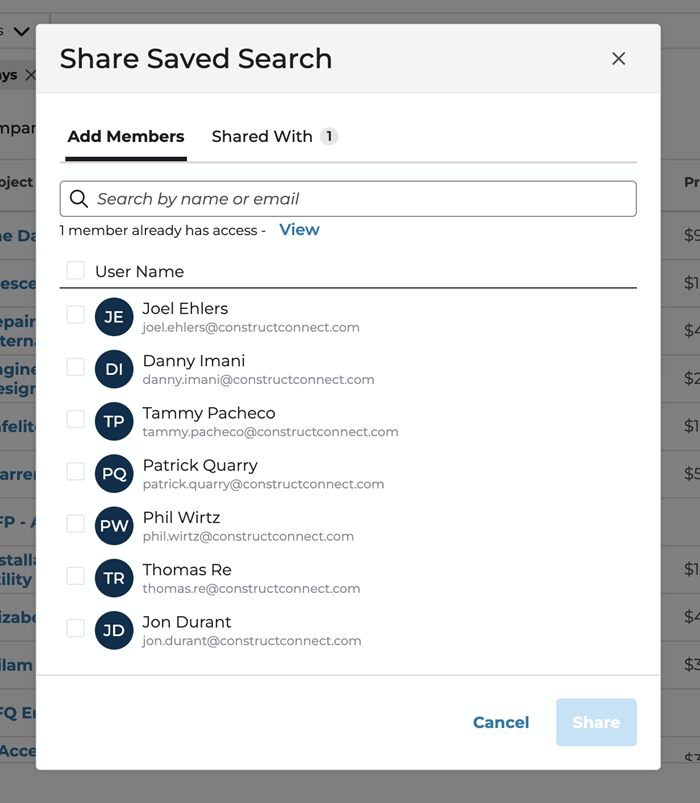
In the Share Saved Search modal, use the Add Members tab to search for and select users in your organization
-
Add the users who should have access by checking the box next to their names
-
When you’re finished selecting users, click Share at the bottom of the modal
Review or remove access
To review or remove access:
-
Open the Shared Saved Search modal for the saved search
-
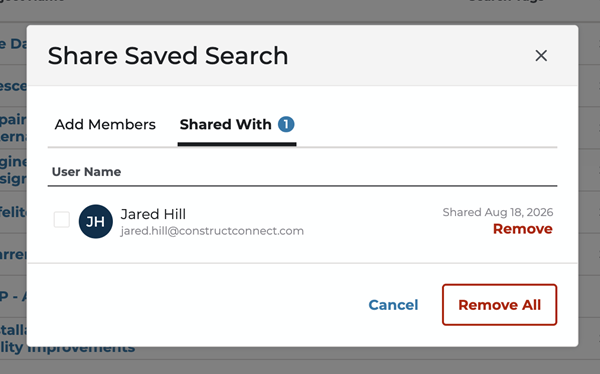
Select the Shared With tab
-
Review the users who currently have access
-
To remove a specific user, click the red “remove” control below their name
-
To remove all users, click “remove all” at the bottom of the modal
Manage a shared search
Edit a shared search
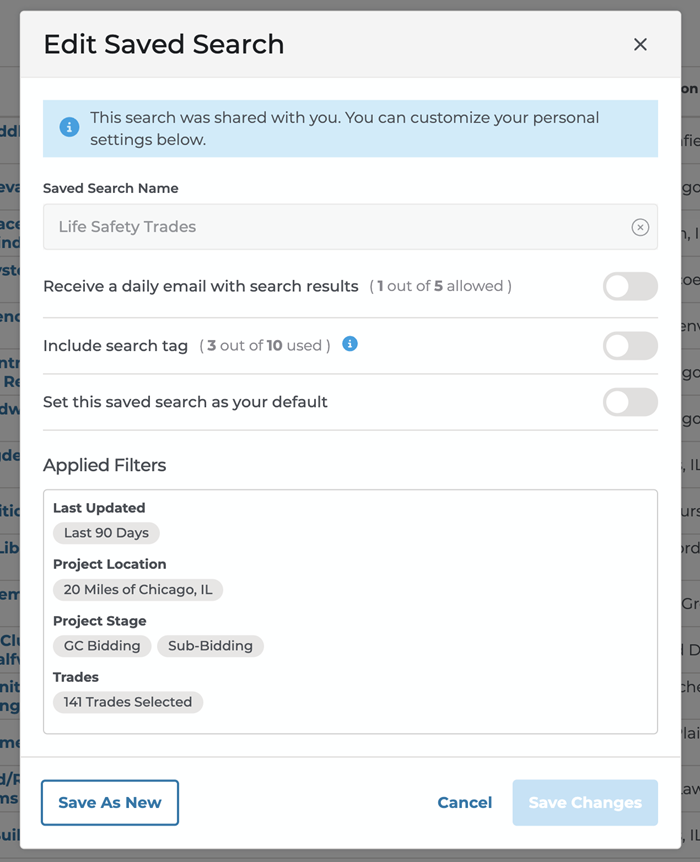
Admins can edit the name or filter criteria of a shared search. Any changes the admin makes to the search are replicated for any users who have access to it.
Delete a shared search
Deleting a shared search also deletes it for all users who have access to it.
For more information on how to edit or delete your saved searches, check out Modernized Search Overview in Project Intelligence.
Use a shared search
Find a shared search
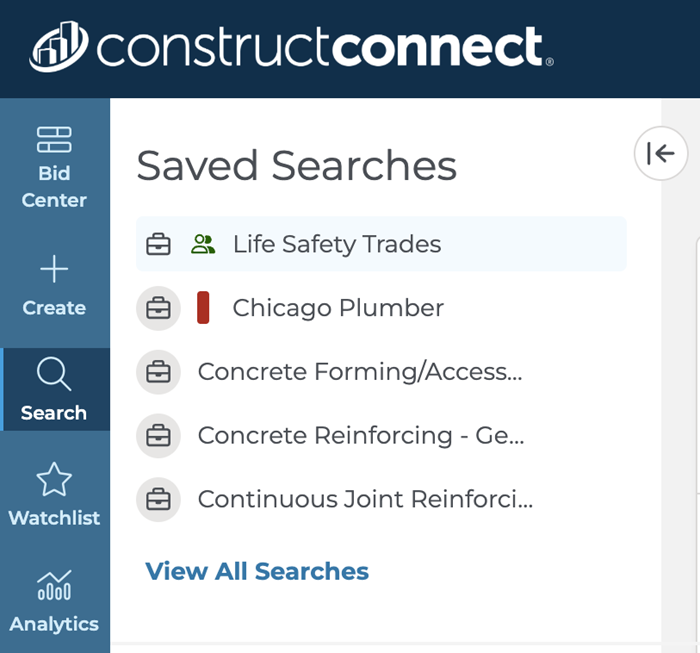
Shared searches are marked with a green icon in the Saved Searches list. You can use this indicator to distinguish a shared search from your other saved searches.
Manage your preferences
As a user, you can manage your own preferences for any search shared by an admin. These preferences include:
-
Email alerts
-
Search tags
-
Default search settings
To manage your preferences:
-
Open the shared search and click Save.
-
Update your email alert, search tag, or default search preferences.
-
Save your changes.
You can also click the Edit icon for the shared search in the Saved Searches list, then update your preferences.
Create your own search from shared search
As a user, you can also create a personal copy of any search shared by an admin if you want to change the filter criteria without changing the original search. Your new search has no relationship to the original search. It is not shared with the same users, and changes to the new search do not affect the original search or its users.
Create your own search from a shared search
As a user, you can also create a personal copy of any search shared by an admin if you want to change the filter criteria without changing the original search. Your new search has no relationship to the original search. It is not shared with the same users, and changes to the new search do not affect the original search or its users.
To create your own search:
-
Open the shared search
-
Click the Edit icon and edit the filter criteria
-
In the Edit Saved Search modal, click Save as New.
The Save Changes button is unavailable for a shared search. Select Save as New to create your own copy instead.
Shared search limitations
Keep the following limitations in mind when sharing saved searches:
-
Admins can see searches they created and shared, but they cannot see searches created by all users across their organization.
-
Admins can share searches, but they cannot manage other users’ email notifications, search tags, or default-search settings. Each user manages their own preferences.
-
Users are not notified when a search is shared or unshared. They can see that a search is shared through the green icon in their Saved Searches list.
 Working with Proximity Search in Project Intelligence Using Search Assist in Intelligence
Related Articles
Working with Saved Search in Project Intelligence
