

Construct ConnectConnect Analytics Company Connections in Project Intelligence
Use Company Connections to understand how a company connects to other firms across shared project activity, without piecing that context together manually. In Analytics, this feature is introduced through the Connections tab on the Company Details Page. Related company information is also accessible through the Target Companies dashboard.
- Before you begin
- What you can do with Company Connections
- Open Company Connections from the Company Details Page
- Use the Company Name tooltip from the Company Targeting dashboard (formerly Lead Generation)
- Review Top 10 Collaborators
- Review Search Tag Insights
- Getting help from inside Analytics
Before you begin
Make sure you:
- Have access to ConstructConnect Analytics in Project Intelligence.
- Determine which companies to explore and engage.
- Are working from either the Company Details Page or the Company Targeting Dashboard, depending on how you want to review company information.
What you can do with Company Connections
Use Company Connections to:
- Make cold outreach more relevant by seeing which firms a company works with most often based on shared project activity
- Prepare for meetings with more insight into a company’s projects, project types, and collaborators
- Add useful company and project details to follow-up communication.
- Check company details without leaving your workflow by using the Company Name tooltip in the Company Targeting dashboard before deciding if a deeper review of the company is needed.
Open Company Connections from the Company Details Page
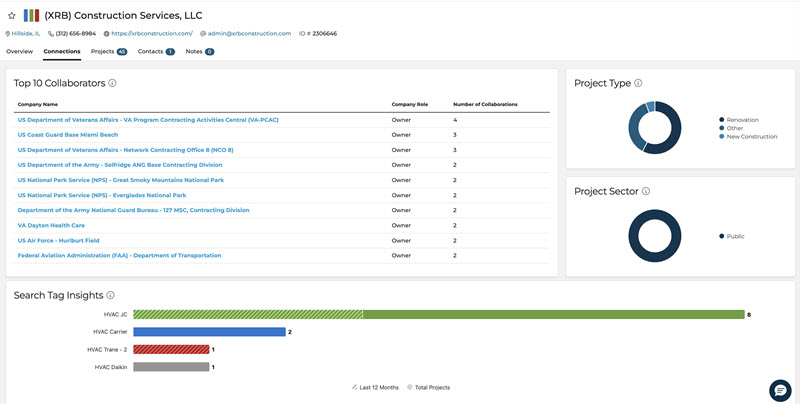
The Company Details Page is the main place to review Company Connections. Once you open a company record, you can use the Connections tab to see which other companies share projects with that company and how those relationships inform your research.
Use this workflow when you want a deeper view of a specific company.
- From the Target Companies dashboard, click the name of any company you want to learn more about.
- Click View Company Details to go directly to the Company Details Page.
- Select the Connections tab.
- Review Top 10 Collaborators and Search Tag Insights to better understand that company's key collaborators and which of your saved search tags are tied to its project activity.
Use the Company Name tooltip from the Company Targeting dashboard (formerly Lead Generation)
Use this workflow when you want quick company context without leaving your dashboard results.
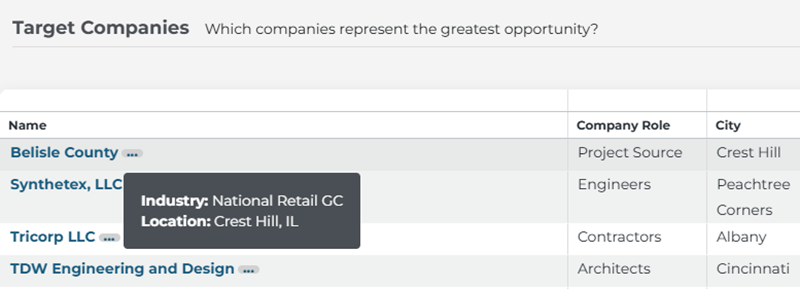
- In the Target Companies dashboard, locate the company you want to review.
- Hover over the company name to open the Company Name tooltip.
- Review the company’s industry and location information.
- Open the full Company Details Page if you need deeper relationship context.
This tooltip workflow is designed to help you quickly size up a prospect without leaving your current dashboard or opening a separate browser tab.
Review Top 10 Collaborators
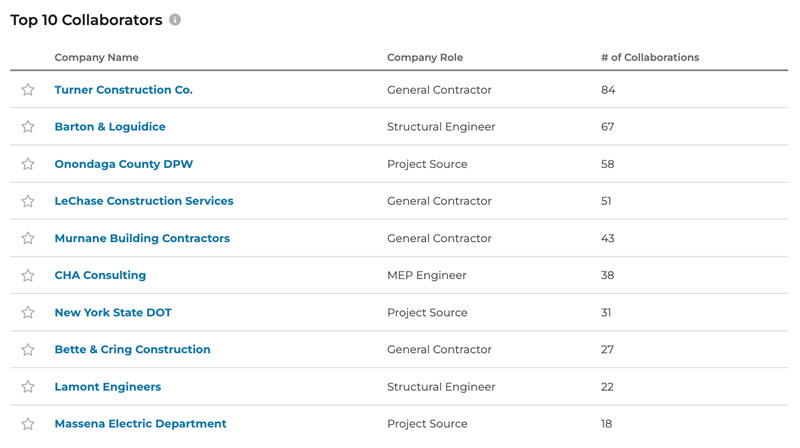
Top 10 Collaborators shows the companies that have appeared with the selected company on at least two shared projects, along with each company’s role. The # of Collaborations column shows how many shared projects they have together.
Use this table when you want to:
- See which firms collaborate most often with the selected company.
- Review each collaborator’s role and how many shared projects they have with the selected company.
- Prepare before outreach or account planning with a clearer view of key working relationships
A company must share at least two projects to appear in Top 10 Collaborators, which helps keep the results focused on stronger collaboration patterns
Review Search Tag Insights
Below Top 10 Collaborators on the Company Details Page, Search Tag Insights shows which of your search tags are tied to the selected company’s project activity, including how many matching projects were found overall and in the last 12 months.
Use this section when you want to:
- See which of your search tags are associated with the selected company’s projects.
- Review the My Brands and Competitors Brands graphs to compare total matching projects with matches from the last 12 months.
- Use that time comparison to spot signs of activity over time.
- Reinforce why the company is relevant before you dig deeper into the page.

A company needs to have a search tag associated with it for information to display in Search Tag Insights
If you’d like more information on how to set up search tags for projects or companies, read Working with Saved Searches in Project Intelligence.
Getting help from inside Analytics
Analytics includes built-in help so you can learn features as you use them:
- Use the speech bubble icon in the bottom right corner of the screen to send a question to our support team.
- Hover over information icons on metrics and charts to see definitions and calculation methods.
- Search the ConstructConnect Help Center for additional Analytics articles and updates.
 ConstructConnect Analytics Specification Positioning Dashboard in Project Intelligence Document Search in ConstructConnect Project Intelligence Training Video
Related Articles
ConstructConnect Analytics Overview in Project Intelligence
ConstructConnect Analytics Company Targeting Dashboard in Project Intelligence
ConstructConnect Analytics Market Overview Dashboard in Project Intelligence
ConstructConnect Analytics Specification Positioning Dashboard in Project Intelligence
