

- Filter projects by Material Quantities
- Review material counts in the results grid
- Review details in the Material Intelligence tab
- Important notes about Material Quantities
- Availability
Material Quantities helps you find projects that include the material types, quantities, and manufacturers most relevant to your business. Use it to narrow project search results, compare material counts, and review details by CSI division on the Material Intelligence tab.
Material Quantities is not a takeoff. It does not measure drawings, price materials, produce bid-ready quantity surveys, or include specifications. Its counts are based on information extracted from project plans and schedules.
Filter projects by Material Quantities
- Open a project search in Project Intelligence.
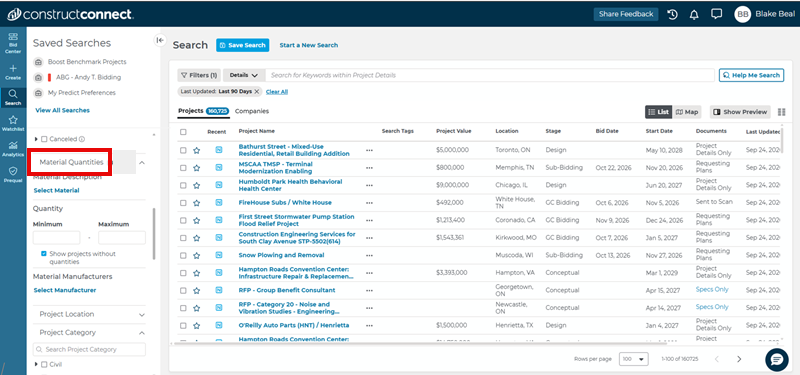
- In the filter panel, expand the Material Quantities section.
- Under Material Description, click Select Material. In the dialog box, search for and select materials by name or CSI code, then select Apply.
- Directly below Material Description, set the quantity range using either the Quantity slider or the Minimum and Maximum fields below it. Use the slider for a quick adjustment or the fields to enter exact values
- Below the quantity controls you’ll find the Material Manufacturer, where you can select one or more manufacturers listed in the project schedules.
- If you selected materials or manufacturers in a selection window, select Apply to save those selections.
The filters work together to narrow the results. For example, you can search for projects that include a specific material, meet a quantity threshold, and list a selected manufacturer for that material.
Review material counts in the results grid
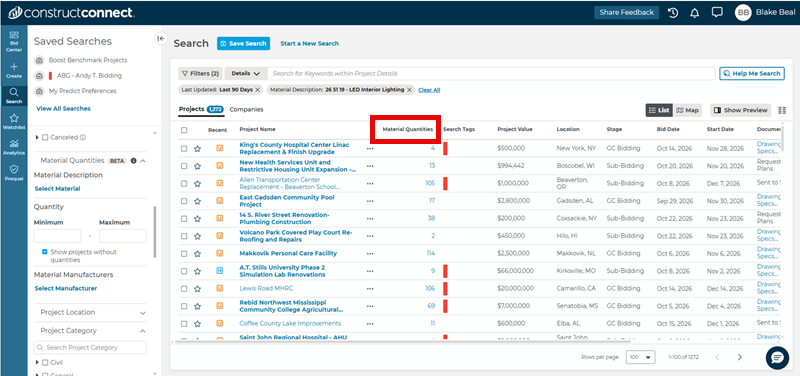
After you apply a Material Quantities filter, the results grid displays a Material Quantities column. The value reflects the total count for the materials that match your selected filters.
Click the project name, or the View link that appears in the Material Quantities column, to open the Project Details Page.
Review details on the Material Intelligence tab
- From the results grid, open a project’s Project Details Page.
- Select the Material Intelligence tab.
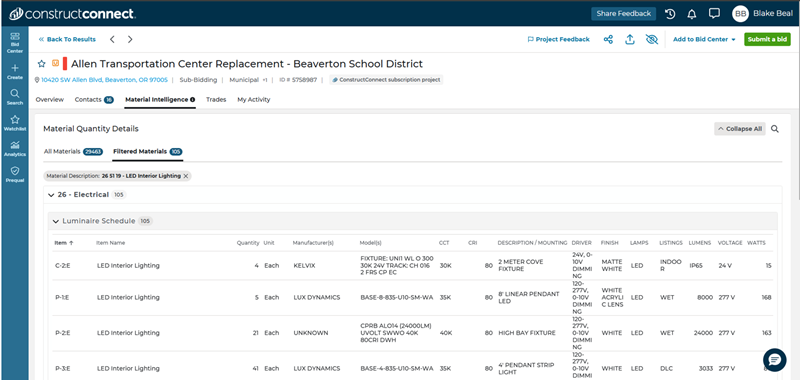
- Expand the CSI division that contains the material you want to review.
- Review the item, quantity, manufacturer, and model information when available.
Material Intelligence organizes material data by CSI division. The available details depend on what appears in the project’s plans and schedules.
To review and confirm the material details, open the project’s Overview tab and select Documents. Review the project plans and schedules before using the information for estimating, bidding, or other project decisions.
Important notes about Material Quantities
- Material data comes from project plans and schedules, not specifications.
- Material Quantities is not a replacement for reviewing project documents. Use the Documents button on the Project Details Page to verify the information in the original project files.
- Material Quantities currently focuses on doors, mechanical, electrical, and plumbing materials. Additional trade coverage may be added in future updates.
- This feature may return no matching projects when the selected material or manufacturer is not present in the available schedules.
- Manufacturer results are tied to the selected material or CSI item. A manufacturer associated with unselected material or products may not show in results.
Availability
Material Quantities is being introduced as a research preview. During the current preview period, it is available to eligible Project Intelligence Pro and Premium customers. Access and subscription requirements may change as the preview progresses.
If you do not see the Material Quantities filter or Material Intelligence tab, your account may not have access, or the project may not contain supported material data.
 Ask Documents in Project Intelligence Working with Your Watch List in Project Intelligence
Related Articles
ConstructConnect Analytics Overview in Project Intelligence
ConstructConnect Analytics Market Overview Dashboard in Project Intelligence
ConstructConnect Analytics Company Targeting Dashboard in Project Intelligence
ConstructConnect Analytics Specification Positioning Dashboard in Project Intelligence
